Work the review queue, decide on each item, and take a Brain version live.
Review is where your team decides what Kai may say. Publishing is where that
decision reaches customers. This page walks through both.You need the permission to review, and the permission to publish. An Agent can
read the Brain but cannot change it.
Go to Brain. The band above the six categories states how many items
wait for a decision.
The review band above the categories.
Select Open the queue. The queue holds every undecided item from all
five reviewable categories, in one list. Publish blockers come first. After
them, the most frequent situations come first.
2
Understand the filters
Above the list there is a row of filters:
Everything. All undecided items, in the order described above. This is
the default and the right one most of the time.
One category. Answer Library, Conversation Flows, Human Handoff,
Communication Rules, Brand Voice. Each filter shows its own count. Use one
when a person on your team owns one category.
Blocks publishing. Only the items that stop you from publishing this
version. Use it when you want to go live today.
When you filter to one category and more than one item is left, an
Approve button appears with a count. It approves the visible items of
that category only. There is no button that approves the whole Brain in one
click.
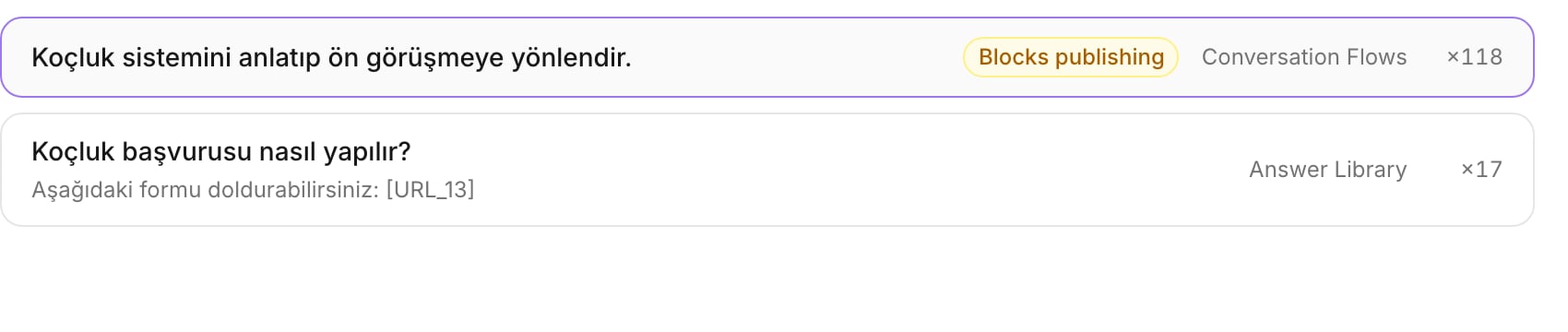
Two queue rows. The badge marks an item that blocks publishing.
3
Read one item
Select a row. The right side shows the whole item and the real conversations
it came from.
The review queue: the list on the left, the item on the right.
Read the examples under Examples from past conversations before you
decide. They are the messages your own team sent. If the proposed answer
does not match them, the answer is wrong, not the examples.
4
Read the count next to the item
Each row ends with a number, for example ×118. It is the number of past
conversations that produced this item. For an answer, it is how many
separate customers asked that question.Treat a high count as a warning to slow down, not as a reason to trust the
item. A high count means two things at once: the item is well attested, and
it will be used often. An error in an item with ×118 behind it reaches
many customers. An error in an item with ×2 behind it reaches almost
nobody.
5
Decide
You have three decisions.
Approve. The text is correct as written. Select Approve.
Edit. Change the text in the form, then select Save and approve.
The item becomes Edited, and your words are what Kai uses.
Reject. Kai must not use this at all. Select Reject. Kai stops
retrieving the item. It never reaches a reply again.
The decided item leaves the queue and Kai opens the next one. To move
without deciding, use j and k. To decide from the keyboard, use a to
approve and r to reject.
Edit rather than reject when the topic is right and the wording is wrong.
Reject only when Kai must never answer that topic.
Kai blocks a publish only for content that could reach a customer without a
human reading it first:
the Brand Voice, which must exist and must be reviewed;
every Human Handoff rule, without exception;
every Conversation Flow that is eligible for autopilot;
every Answer Library entry that answers an intent one of those flows
covers.
Everything else can stay unreviewed. That is on purpose. An unreviewed answer
in a published Brain still writes drafts in copilot, where a human reads every
word before the customer does. If unreviewed content blocked a publish, no team
would ever get to review its long tail against real traffic.
The rule that protects you is applied per reply, not per Brain. On autopilot
with the scope Anything a reviewer approved, Kai sends a reply on its own
only when the answers it used and the flow it followed are approved or edited.
A reply built from unreviewed content becomes a draft.
In the queue, select the Blocks publishing filter. Decide every item in
it. The count in the header goes to zero.
2
Select Publish
Go back to Brain and select Publish in the header.
3
Read the confirmation
Kai states the consequence before it happens: every channel answers from
this version immediately, and the version stops being editable.If unreviewed entries are still in the version, Kai names how many. They
ship with the version, and they can only draft for a human.
4
Confirm
The previous published version becomes Archived. It stays readable.
After a publish, the version is read-only. You cannot approve, edit or reject
anything inside it. Facts are the exception: current information is not part of
a version, so a price change still takes effect on the next reply. Read
Current information.
The queue is one list, but the filters make it several.
Give each category an owner. Human Handoff and Brand Voice decide when a
machine talks to a customer unsupervised, so give them to the person who
answers for that. Answer Library is the long tail, and it is the part that can
be shared widely.
Clear the blockers first, together. Use the Blocks publishing filter
in one sitting. It is a short list, and it is the only list that stops you
from going live.
Two people can work at the same time. Each decision is written on its own.
A reviewer never overwrites another reviewer’s decision.
Leave the tail for later. Go live in copilot with the tail unreviewed.
Your team then reviews real drafts in the inbox instead of guessing which
answers matter.