

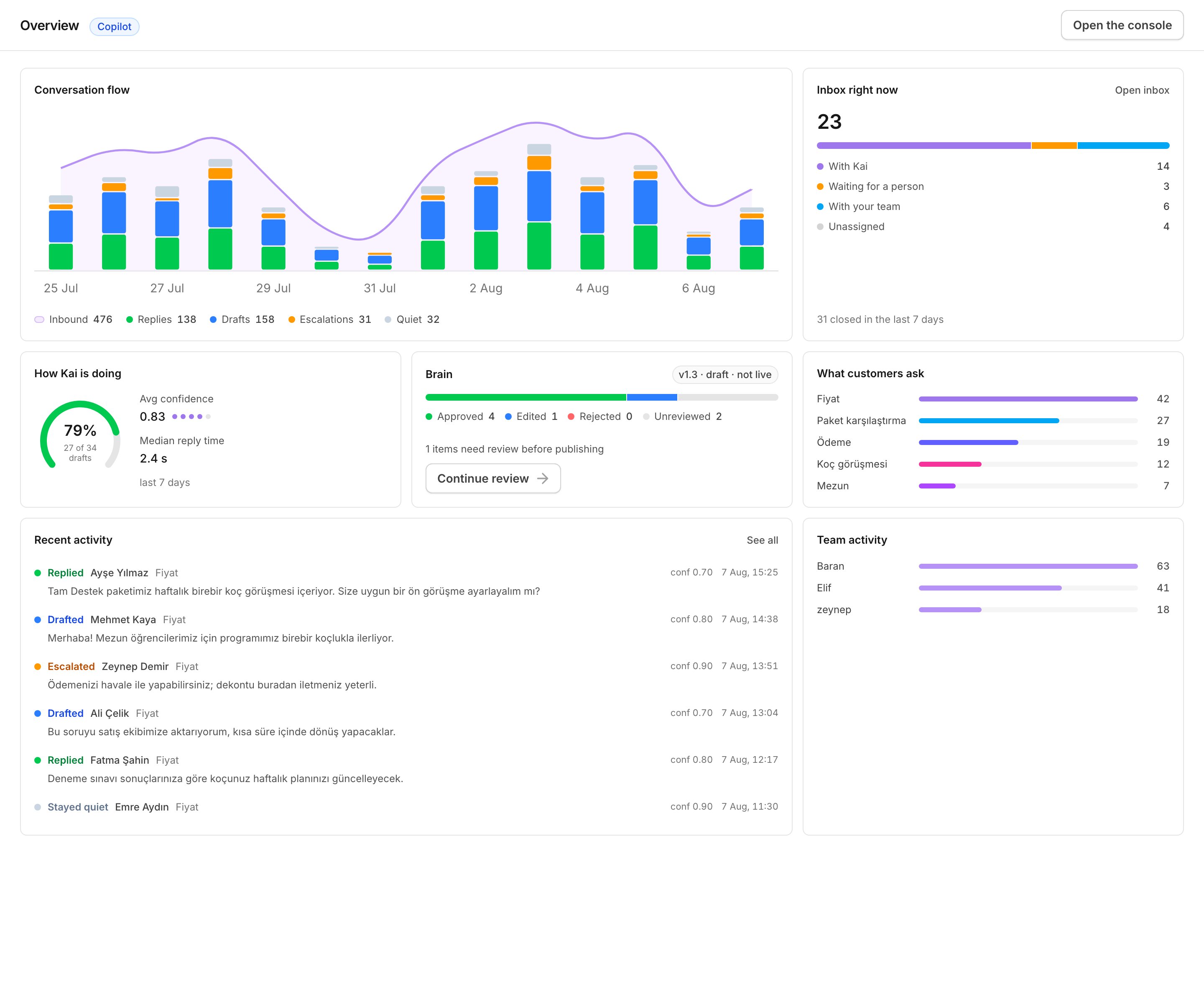
The Overview page.
The header
Beside the page name is one chip: Autopilot, Copilot or Off. Hold the pointer on it to read what it means for your customers. If no channel is connected, the header says instead: No channel is connected yet, so Kai is not talking to anyone. The chip shows the mode of your channels. Mode is set per channel and can be overridden per source. See Copilot and autopilot.Conversation flow
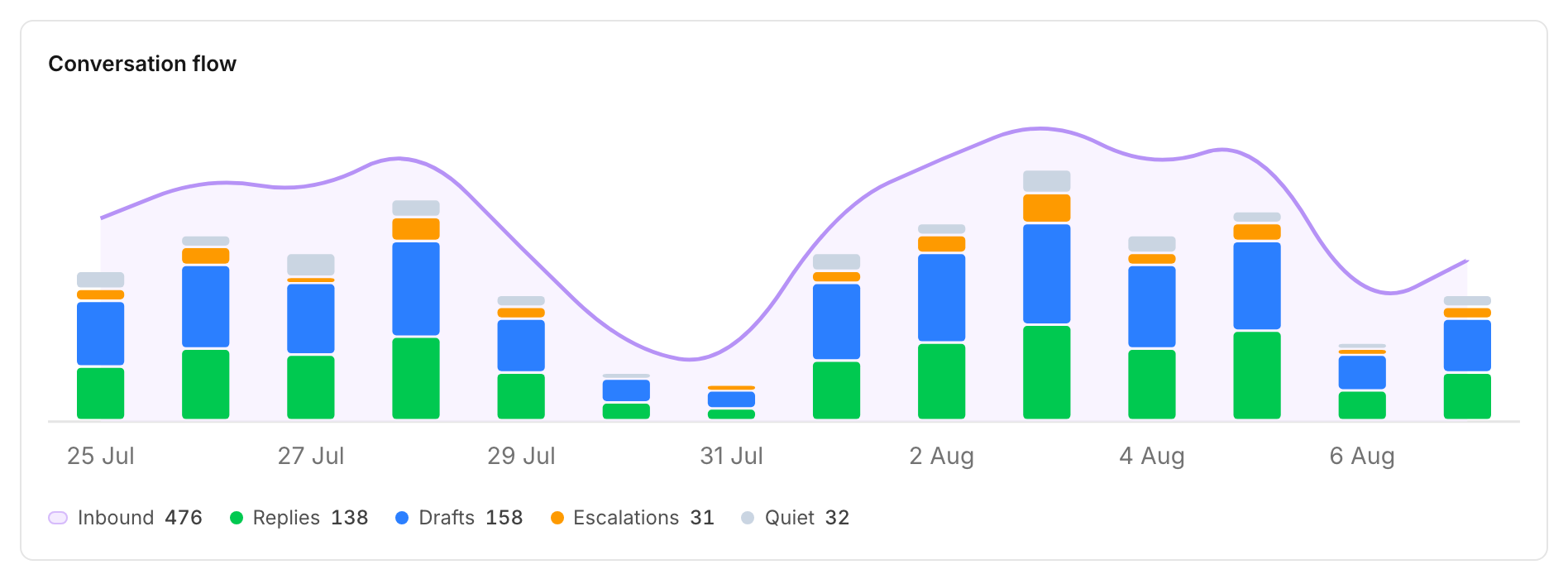
Two weeks of inbound messages, and what Kai did with them.
Inbox right now
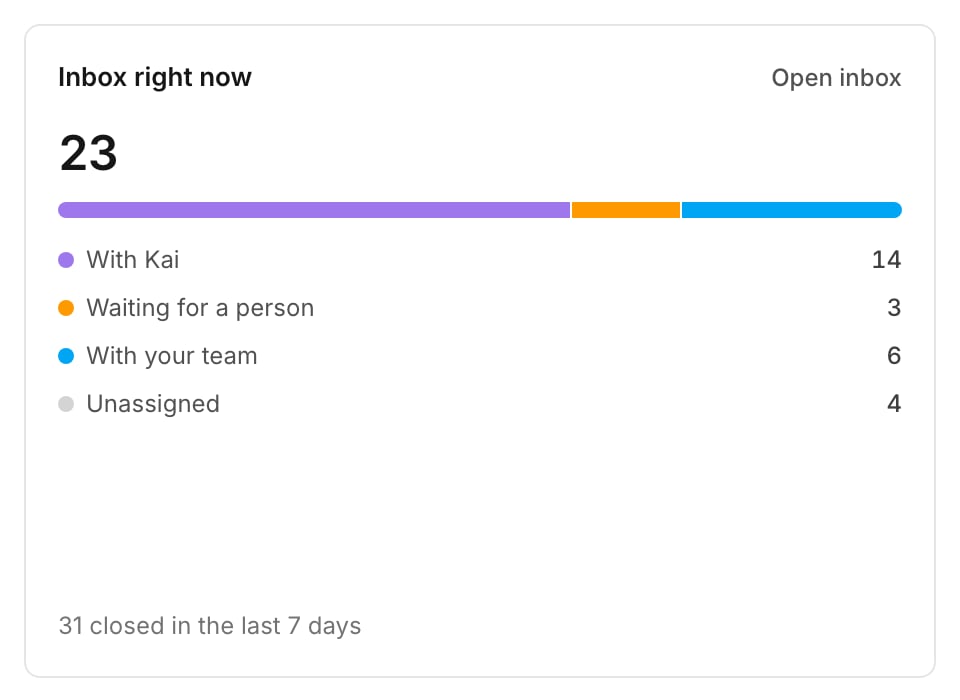
Open conversations, and who holds them.
Under the card: how many conversations closed in the last 7 days.
Healthy: Waiting for a person and Unassigned are small and they
move. They are queues, not stock.
When it is wrong: a growing Unassigned count means work reaches nobody.
Give those customers an account owner, so the next conversation routes by
itself. See Contacts and account owners.
How Kai is doing
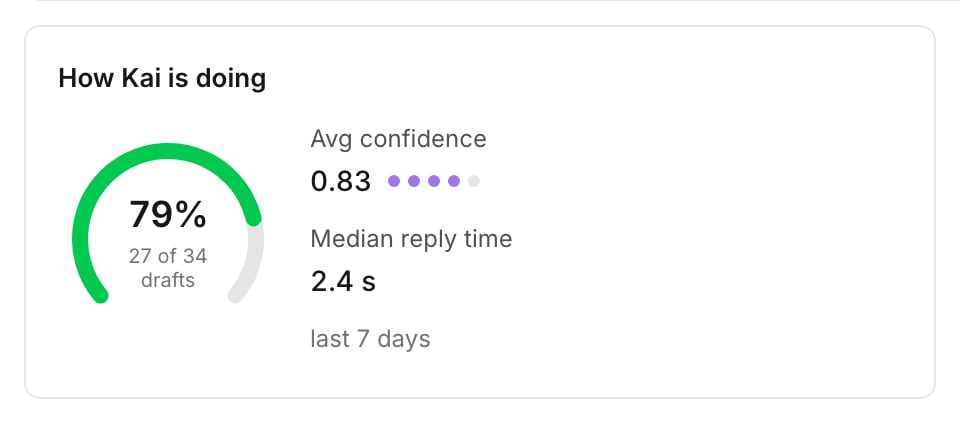
Draft acceptance, average confidence, and median reply time.
Draft acceptance
The share of Kai’s drafts that your team accepted, shown as a gauge, with the count under it, for example 27 of 34 drafts. Healthy: 60% or more. That is the number that says copilot is worth the click. When it is low: the drafts are wrong, not the team. Open Review in the console, correct ten replies in the weakest topic, then retrain. When it reads a dash: no feedback yet. Kai fills this card from what your team did with each draft, so it stays empty until Kai has written drafts and your team has acted on them. Ratings are a separate signal, and they are what let a live reply into the next training corpus.Avg confidence
The average confidence of Kai’s actions, from 0 to 1. Healthy: comfortably above the confidence floor you set on the channel. Kai drafts instead of sending when an action falls under that floor. When it is low: the questions arriving are not the questions the Brain was compiled from. Read What customers ask below. A topic with high demand and no answer entry is the gap.Median reply time
How long Kai took to produce its action. Healthy: a few seconds. Kai waits on purpose before it answers, so that a customer who writes five short messages gets one reply, not five. That wait is set per channel and is not counted here. When it is high: the model is slow or the conversation is long. It is not a Brain problem.Brain
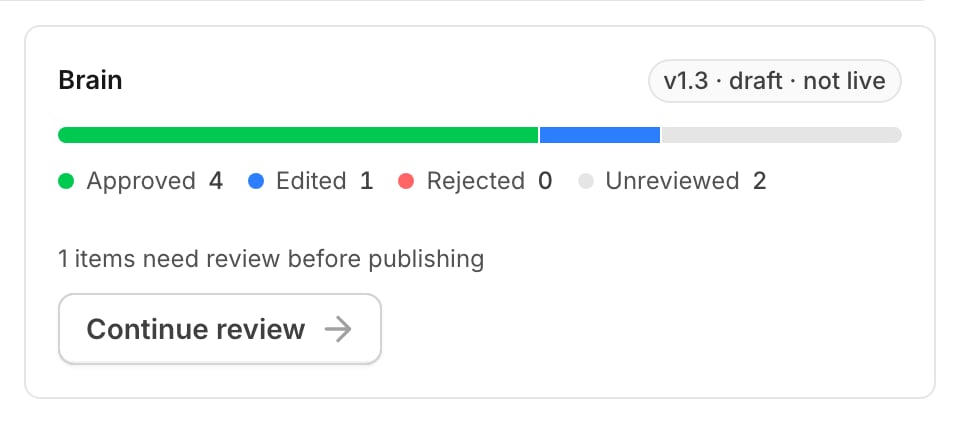
The Brain card: review progress and the next action.
- This draft is ready to publish, with Review and publish;
- a count of the items that need review before publishing, with Continue review.
What customers ask
The topics Kai classified in live traffic, largest first. Healthy: the top topics match the answers you reviewed first. When it is wrong: a large topic that your answer library does not cover is the highest value work you have. Ask about it in the console, then retrain with that goal. The card is empty until Kai classifies live traffic. It is not filled from your import.Recent activity
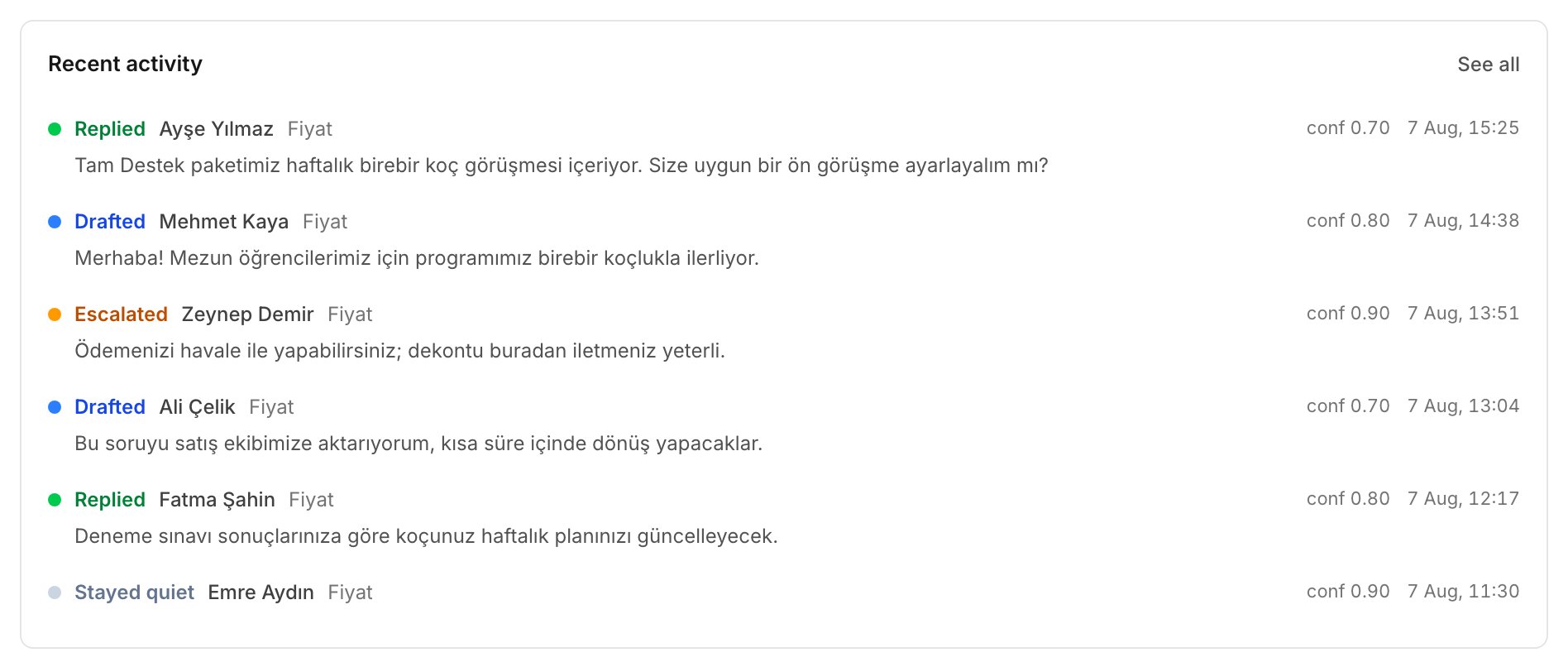
Recent activity: what Kai did, with its confidence.
Team activity
How many replies each teammate sent from the inbox, over the same 7 days. This is a workload view, not a ranking. Use it to find the person who is carrying the queue alone, and the queue that nobody is carrying. The card stays empty until your team replies from the Kai inbox.The Activity page
Activity holds every action, with the reasoning that produced it: What Kai did, and why. Every action carries the playbook, answer entries and guardrails behind it. Filter with Everything, Replied, Drafted, Escalated and Stayed quiet. The header repeats draft acceptance over 7 days. Open one action, and you get:- the transcript of the conversation;
- Kai’s reasoning: the conversation flow, the answer entries used, the grounded facts, the confidence, and the Brain version;
- the Coaching note that went with a draft, or the Handoff context that went with an escalation;
- Autopilot muted: a human took over, when somebody replied on the thread.
The feed fills as Kai acts. Until a channel is connected, it says: Kai
records every action the moment it takes one. Connect a channel and this
fills up.
Next
The console
Ask the Brain, propose a change, test a reply, review what Kai said.
Retrain the Brain
Turn corrections and live conversations into a new draft.