

Close a finished conversation
When the customer has their answer, close the conversation.1
Select Close in the thread header
Kai asks you to confirm. The message says the conversation leaves the open
queue, and that you can reopen it any time.
2
Confirm
The conversation leaves Open. It is now in Closed.
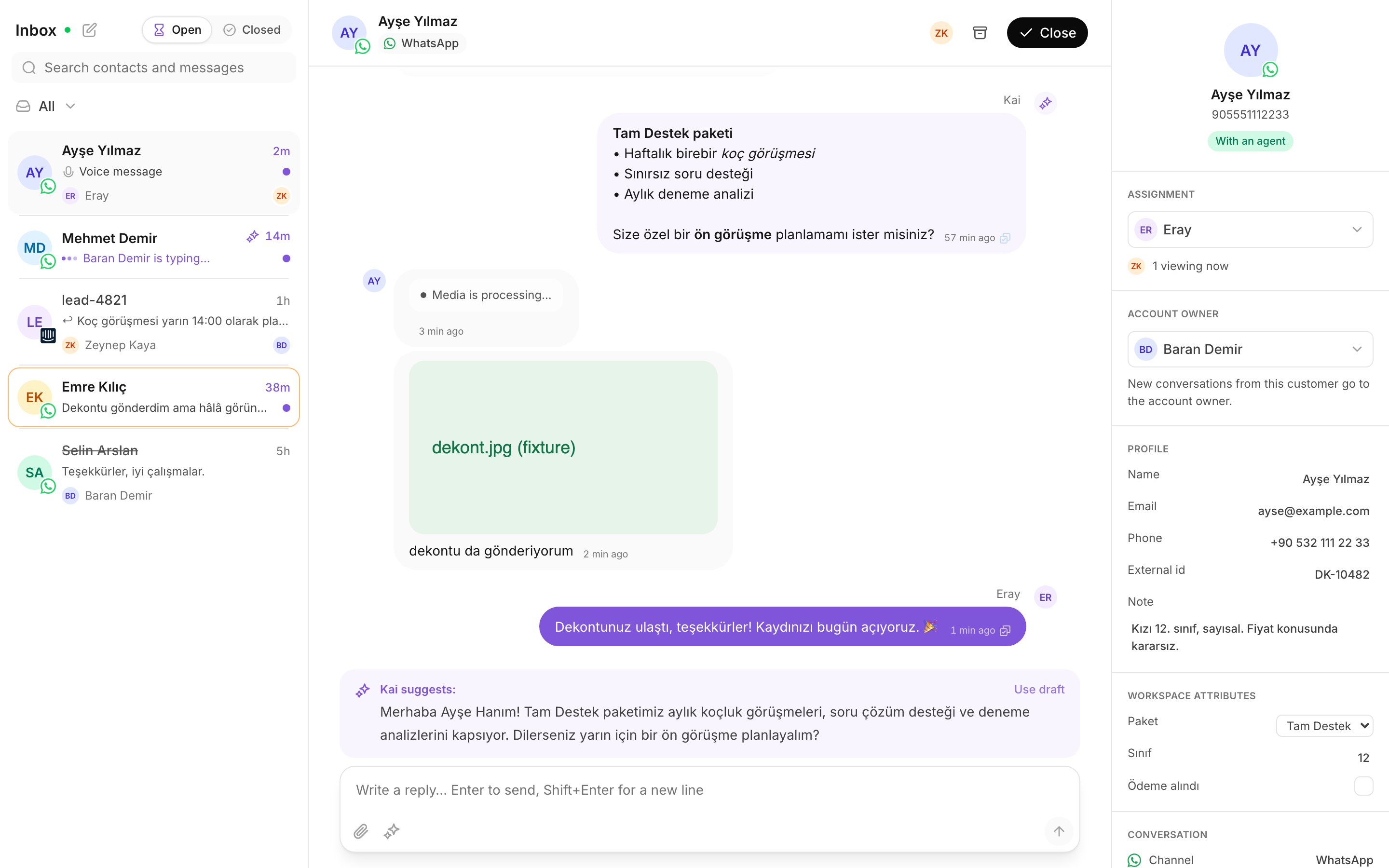
The inbox. Closed conversations leave the Open segment.
How a closed conversation comes back
A closed conversation comes back on its own. When the customer writes again, the conversation reopens and returns to Open. You can also bring it back yourself:- Select Closed at the top of the list.
- Find the conversation. Search works here too, and it ignores the segment.
- Open it, then select Reopen.
The WhatsApp 24 hour window
WhatsApp allows a free-form reply only inside 24 hours of the customer’s last message. This is Meta’s rule, not a Kai setting, and nobody in your workspace can turn it off. The details panel shows the state under Reply window: either the time the window closes, or Closed. Inside the window, write and send as normal. Outside the window, the composer says:The 24-hour WhatsApp window has closed. Only template messages can be sent until the customer writes again.Your message will not deliver. Do not send it again, and do not retype it in another form. The result is the same.
What to do instead
1
Select Use a template
The composer changes to the template picker. It offers the templates that
Meta approved for your account.
2
Select a template that fits
Pick the one closest to what you wanted to say. Kai fills the variables it
can from your profile and from the customer record.
3
Fill what is left, then send
If your profile has no name, Kai asks you to add it first.
If the picker says no approved templates exist yet, stop and tell your
manager. Templates are added in Settings, which your role does not open.
Practice
- Open a conversation you finished today. Select Close, then confirm.
- Select Closed at the top of the list. Find that conversation and select Reopen.
- Open a WhatsApp conversation and read Reply window in the details panel. Note the time it closes.
Read next
Send a Kai draft
Use what Kai wrote, change it, or write your own reply.