From sign-up to Kai’s first draft in your inbox, with what good looks like at each step.
This page is the whole first run. Follow it once, and Kai writes its first
draft in your inbox at the end.Set aside about one hour of your own time. The compile runs on our server and
needs none of your attention.The set-up wizard has four steps:
Import your history
Review your Brain
Connect a channel
Choose copilot or autopilot
1
Sign in and name your workspace
Sign in, then give the workspace the name your team uses for the business. The
name appears on the set-up page and in the product.The person who creates the workspace becomes Admin. An Admin can do
everything, including erasing raw uploads. Add your teammates later, in
Settings → People. A role change takes effect on the next session refresh,
under a minute.Time: about two minutes.
2
Upload your chat history
The first wizard step is Import your history. Drop your export on the panel
that says Drop your chat export here, or use Choose files.Kai reads:
WhatsApp .csv or .txt files;
an Intercom .json export.
Select the whole folder. Hundreds of files is normal, and a large export is
split into several uploads automatically.Then select Compile my Brain.
Kai replaces every phone number, email address and payment reference with a
placeholder before any model reads a word. You can delete the raw upload at
any time, in Settings → Data controls.
What good looks like: at least a few hundred real conversations, from the
team and the topics you want Kai to cover. Sales chats and support chats
compile into different answers, so upload what you want Kai to handle. Group
chats between your own staff add noise, so leave them out.Time: two to ten minutes, mostly upload.
3
Wait for the compile
The panel shows the percent done, the stage, and how much time is left. The
five stages are:
Stage
What happens
Queued
Your files are on our server. The run starts shortly.
Reading your conversations
Kai splits chats into sessions and replaces personal data with placeholders.
Understanding what customers asked
One pass per conversation: what it was about, and how it ended.
Building your Brain
Kai groups equal questions, picks the best answer your team gave, and derives your voice and flows.
Ready to review
Nothing is live. Nothing goes live until you approve it.
A compile in progress. The same view is used for a retrain.
This runs on our server, not in your browser. Close the tab and come back.What good looks like: the counts under the progress bar match your export.
If Kai reports far fewer conversations than you uploaded, the export format is
probably wrong. Try another export.Time: a few minutes for a few hundred conversations.
4
Open the Brain and work the review queue
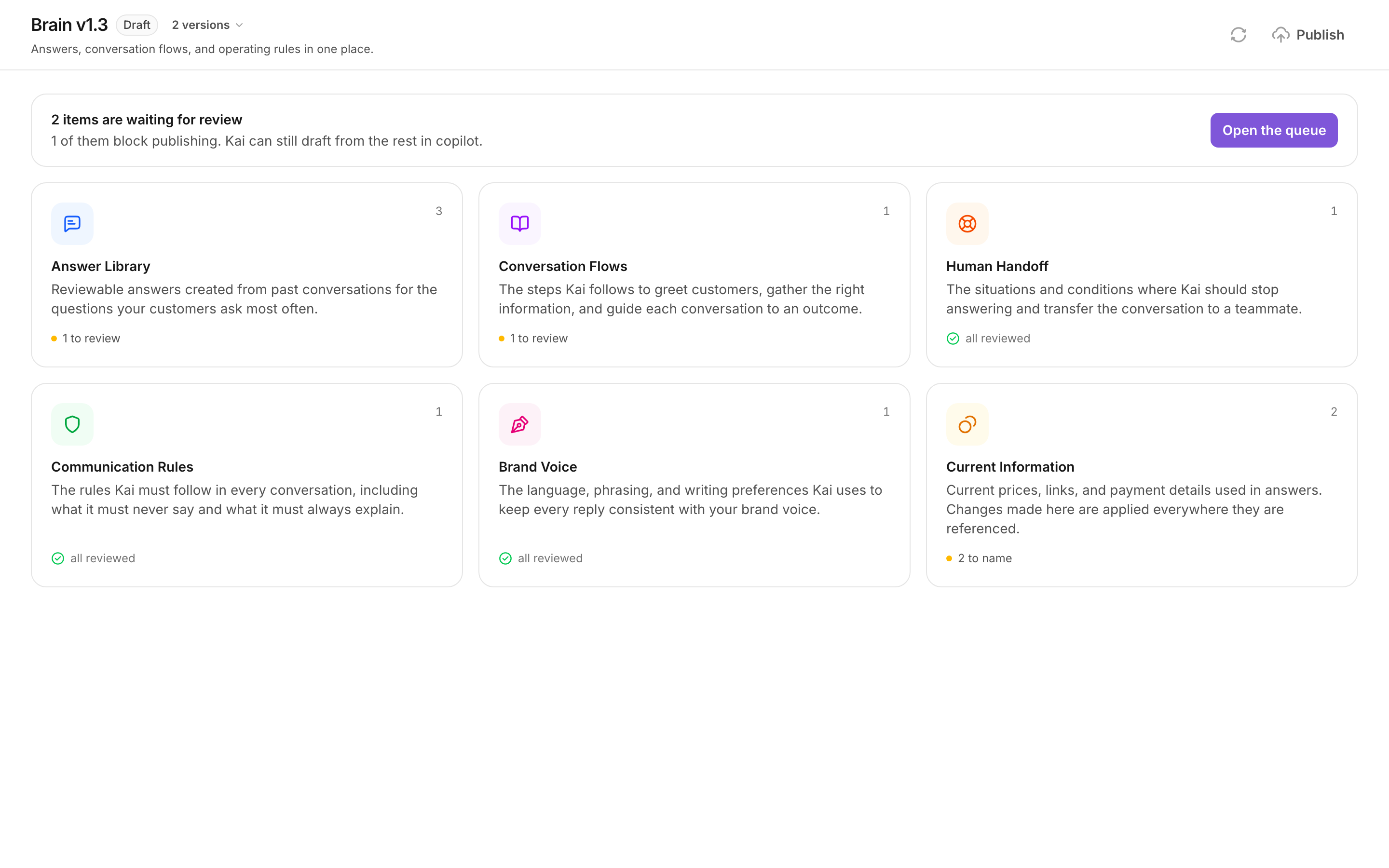
The second wizard step is Review your Brain. Open the Brain page. It shows
six categories, and a banner when items wait for a decision.
The Brain page. Each card shows how much of that category still needs review.
Select Open the queue. The queue is sorted with the blockers first, then by
how often customers ask. For each item you can:
Approve it, if the text is right as it is;
edit the text and Save and approve, which records you as the reviewer;
Reject it, if Kai should never say this.
Items badged Blocks publishing must have a decision before you can publish.
Those are your brand voice, every human handoff rule, every conversation flow
that autopilot may use, and the answers those flows use. Everything else may
stay unreviewed: unreviewed content drafts for a human and never sends on its
own.Fill in Current Information as well. Your real prices, links and payment
details live there. Answers pull the value from that one place, so a price
change later is one edit, with no review and no publish.
You do not have to finish the queue before you go live. Copilot works on an
unreviewed draft, because a person reads every word. Review the first thirty
or so answers, then let real traffic show you which of the rest matter.
What good looks like: you read an answer and think “yes, that is how we say
it”. If you are editing almost every answer, the export was probably the wrong
set of conversations.Time: thirty to ninety minutes for a first pass. It is the one step that
needs a person who knows the business.
5
Connect Intercom or WhatsApp Cloud
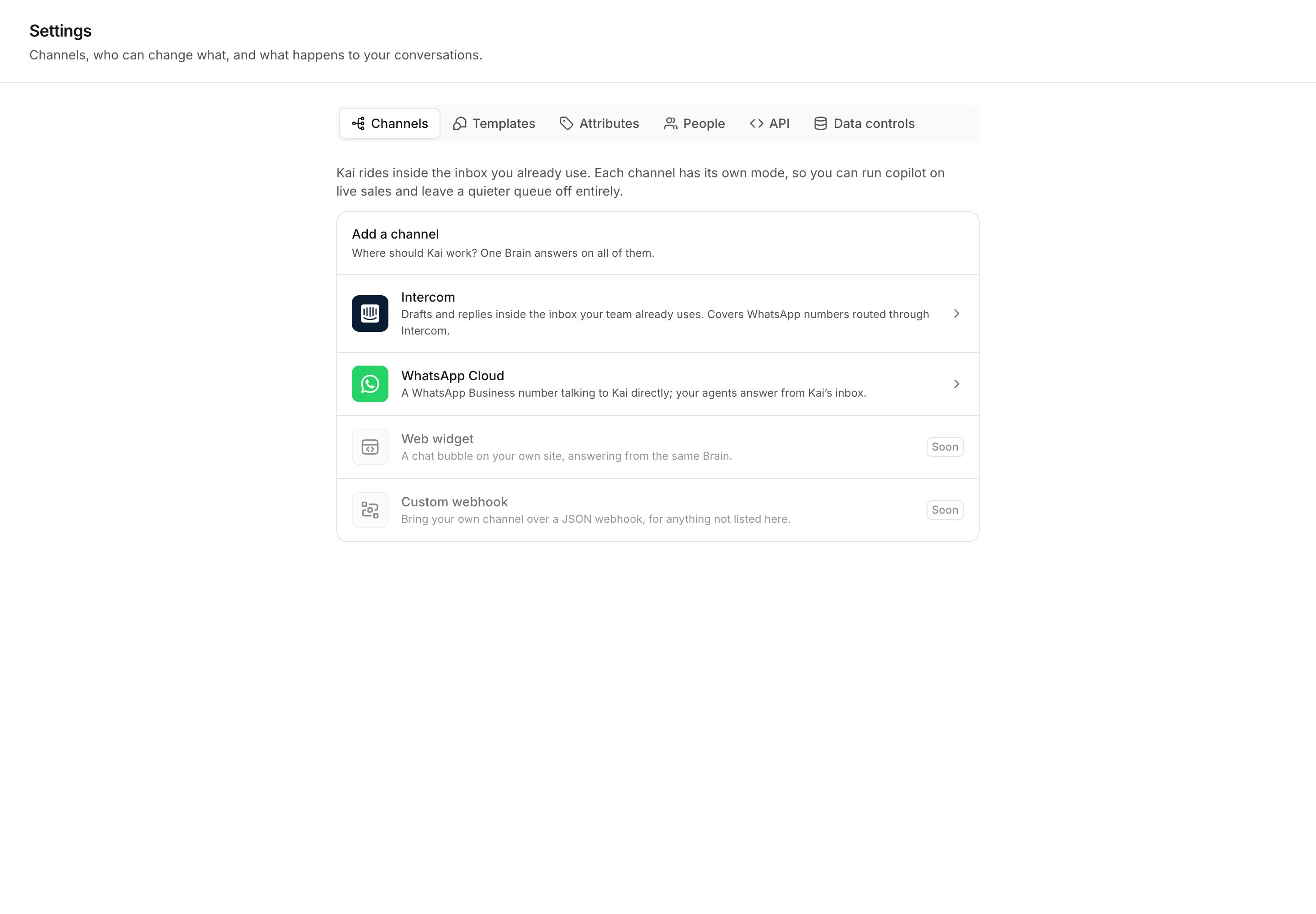
The third wizard step is Connect a channel. Go to Settings → Channels.
Settings → Channels, before anything is connected.
Two channels are available:
Intercom. Kai works inside the inbox your team already uses. Drafts
arrive as internal notes, and a handoff is an assignment. This also covers
WhatsApp numbers routed through Intercom.
WhatsApp Cloud. A WhatsApp Business number talks to Kai directly, and
your team answers from Kai’s own inbox.
Add the channel, then use Show delivery URL to get the address the provider
must post to. Put that address in Intercom’s Developer Hub, or in the Meta app
dashboard under WhatsApp > Configuration. Treat the address like a password.For Intercom, Test connection confirms the credential works. For WhatsApp
Cloud, the card checks four steps in turn and tells you which one fails.
A channel needs a published Brain before it can act. If the card says no
Brain is pinned, publish one first.
What good looks like: the card shows the channel as connected, and entries
appear under Recent activity as the provider delivers messages.Time: ten to twenty minutes, most of it in the provider’s dashboard.
6
Leave the channel in Copilot
The fourth wizard step is Choose copilot or autopilot. Choose Copilot.In copilot, Kai writes a draft and a coaching note. A human reads it and sends
it. Nothing reaches a customer unread. This is how you find out what Kai gets
right before it can answer alone.Select Save policy.Time: one minute.
7
Watch the first drafts
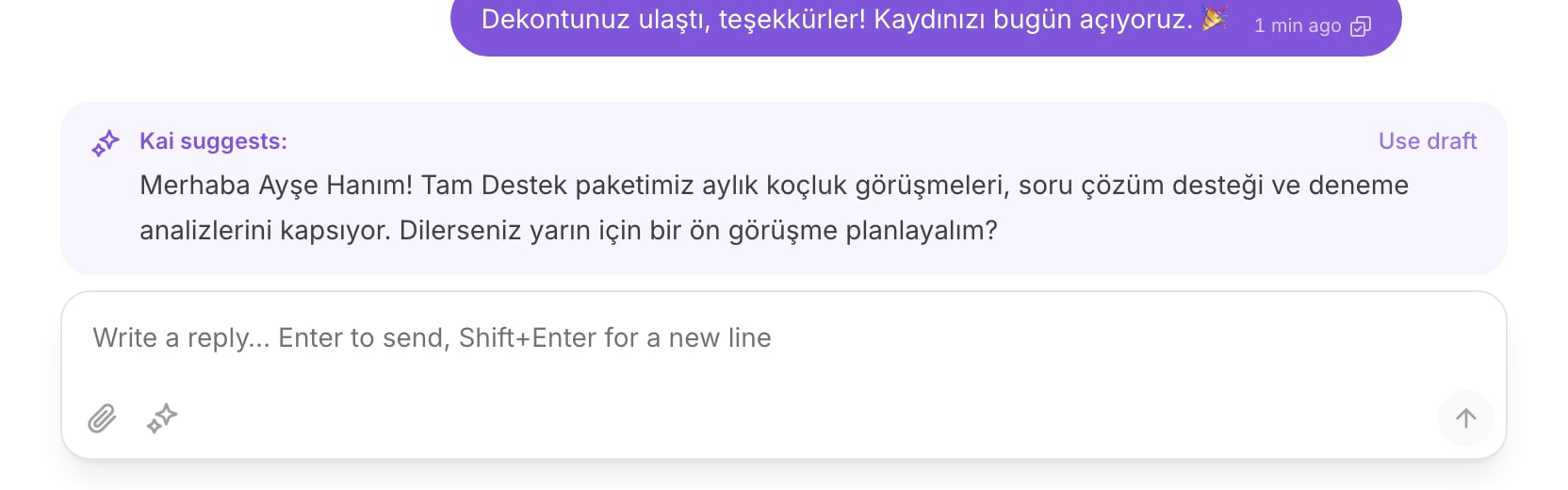
Open the inbox. When a customer writes, Kai waits for them to finish, then
writes a draft above the composer under Kai suggests:.
A draft in the composer. Select Use draft to load it, then edit and send.
Select Use draft to load the text into the composer. Change what you want,
then send. Your team keeps full control of the words that reach the customer.Watch the Overview page for the first week. Draft acceptance tells you how
often your team sends a draft with few changes. That number is the signal that
decides the next step.What good looks like: your team sends most drafts with small edits. If they
rewrite most drafts, go back to the review queue rather than to the settings.Time: the first draft arrives minutes after the first customer message.
8
Move one source to Autopilot later
After about two weeks of copilot, pick one source that your team almost never
corrects. Open its channel card in Settings → Channels, and set that source
to Autopilot under Per-source modes. Leave the rest on Inherit.Keep the scope on Anything a reviewer approved at first, or use Only the
intents I pick for a narrower start. Then widen it as the numbers hold.The full detail is in Copilot, autopilot and off.