

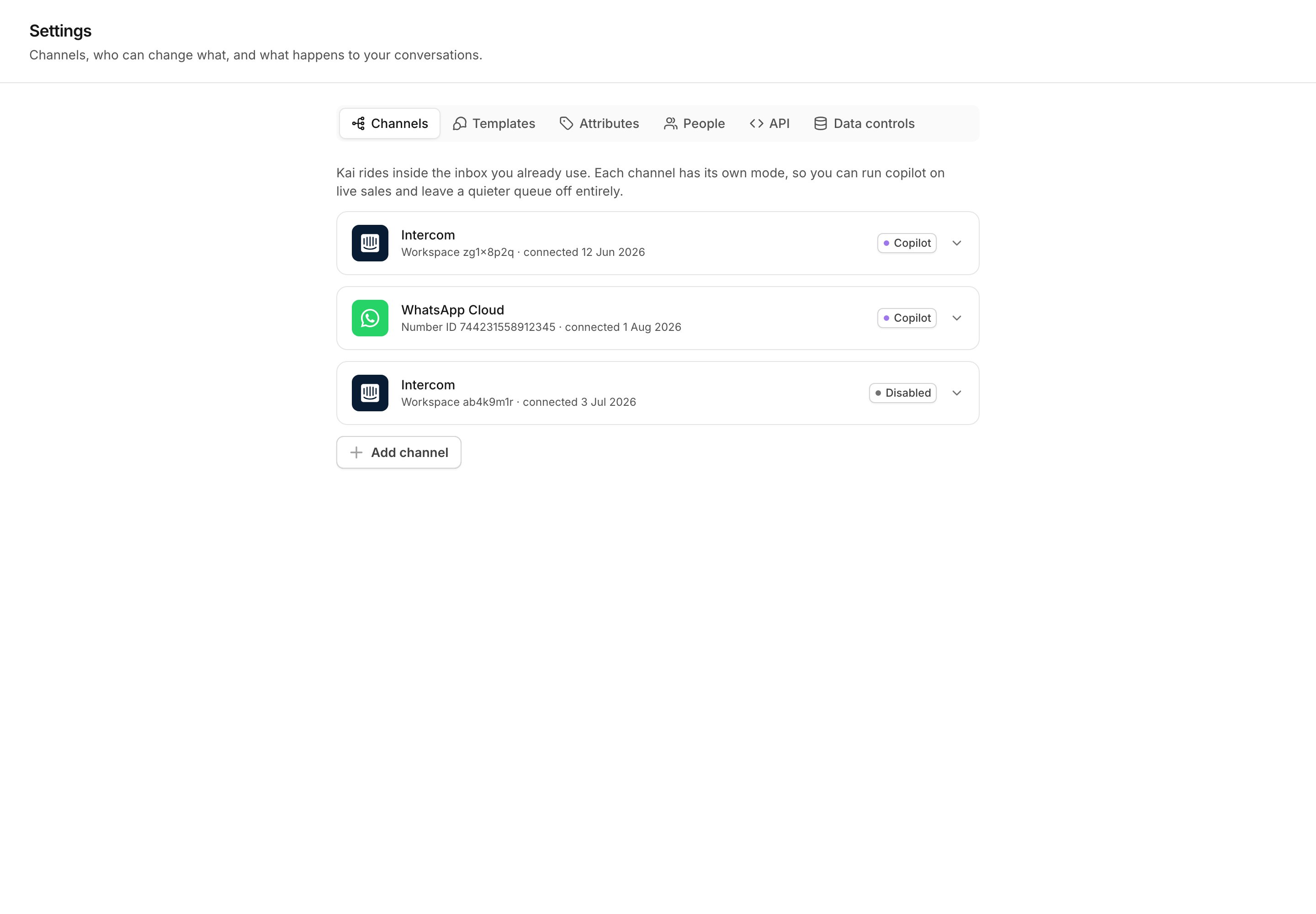
Settings, Channels: every connection and the mode it runs.
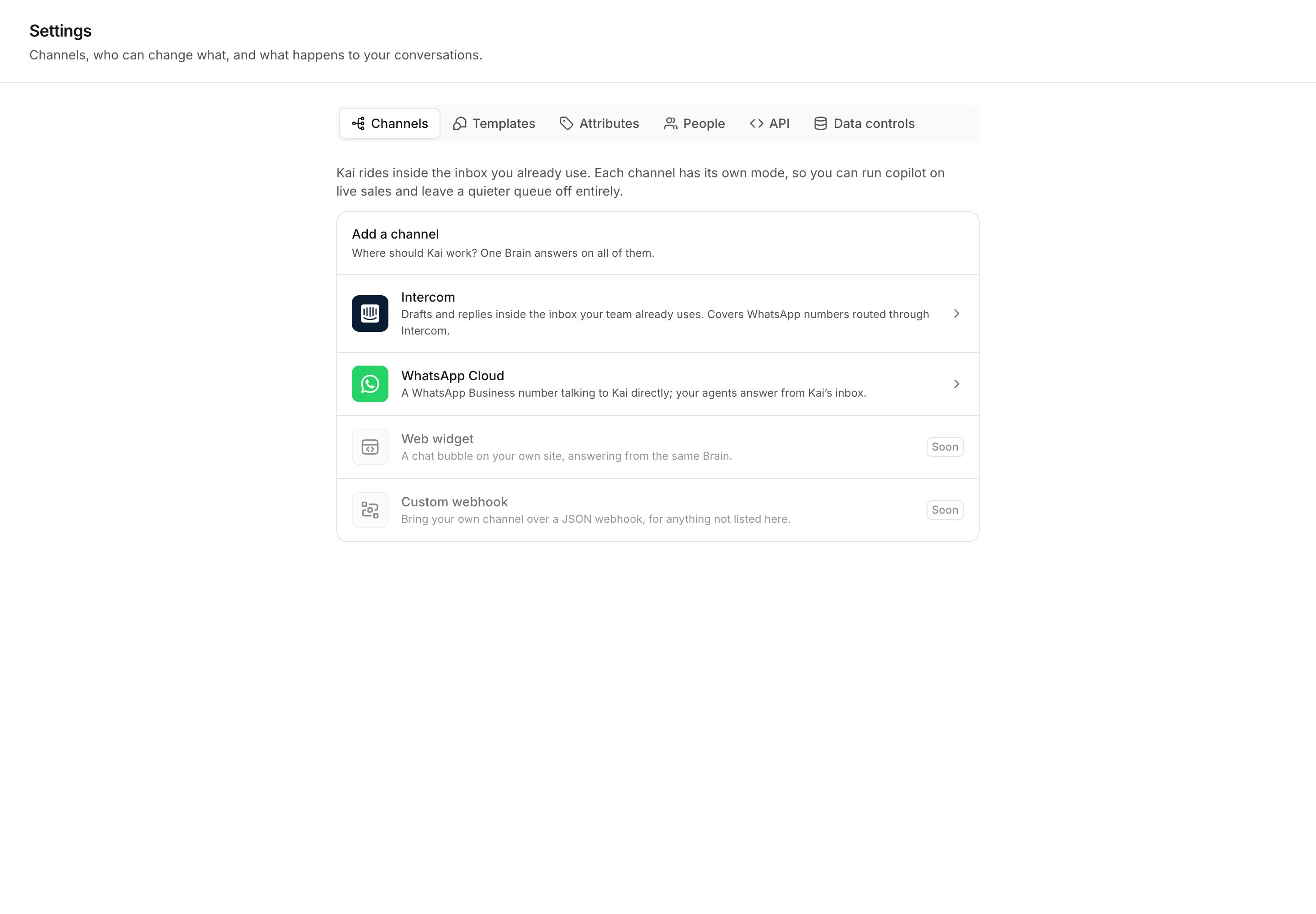
A workspace with no channel connected yet.
Connect Intercom
Kai works inside the inbox your team already uses. Kai writes drafts as internal notes and hands a conversation over by assigning it.1
Get an access token
In Intercom, open Developer Hub → your app → Configure →
Authentication. Copy the access token. The token is scoped to one
workspace, so Kai learns the workspace from the token.
2
Get the client secret (recommended)
In the same app, open Basic Info and copy the client secret. It is
optional in Intercom’s own token flow, so Kai treats it as optional too.
Read Which secret to use before you skip it.
3
Paste both into Kai
In Settings → Channels, select Add channel, then Intercom.
Paste the access token, and the client secret if you have one. Select
Connect. Kai checks the token with Intercom before it stores anything.
4
Add the webhook endpoint in Intercom
Kai shows a URL after it connects. In Intercom, open Developer Hub →
your app → Webhooks and add that URL.
5
Subscribe to four topics
Subscribe to
conversation.user.created,
conversation.user.replied, conversation.admin.replied and
conversation.admin.closed. Kai needs the admin replies to know that a
human took over.Kai stores the token encrypted on your own server. To rotate a token, or to
add a client secret later, run the connect flow again with the new values.
Which secret to use
Kai has two ways to prove that a delivery is genuine.
The signature is the stronger of the two, because it authenticates the message
and not only the caller. A URL reaches a log file more easily than a header
does.
Connect WhatsApp Cloud
A WhatsApp Business number talks to Kai directly. There is no provider inbox, so your team answers from Kai’s inbox.1
Collect three values from Meta
Open Meta App Dashboard → WhatsApp → API Setup. Copy the Access
token, the Phone number ID and the WhatsApp Business Account ID.
Use a permanent system-user token, not the 24-hour test token.
2
Copy the app secret (recommended)
Open the app’s Basic Settings and copy the app secret. With it, Kai
verifies the signature on each delivery. Without it, the secret webhook
URL authenticates the caller instead.
3
Paste them into Kai
In Settings → Channels, select Add channel, then WhatsApp
Cloud. Paste the values and select Connect. Kai checks them against
Meta before it stores anything.
4
Read what Kai did for you
Kai registers the number for Cloud API and subscribes the webhook fields
to its own callback URL. The result page lists each step and says which
ones are done.
5
Finish anything Kai could not do
If Kai could not subscribe the webhook, it shows the Callback URL and
the Verify token. In Meta, open App Dashboard → WhatsApp →
Configuration → Webhook, paste both, then subscribe the
messages
field.messages subscription, the callback URL, and the app subscription. If
messages stop arriving while the credentials are still valid, read that panel
first.
Sources inside one channel
One Intercom workspace carries several surfaces on one credential and one webhook. Intercom calls each of them a source. Kai knows Messenger, WhatsApp, Email, SMS, Instagram, Facebook and Phone. Those surfaces are not one audience. A Messenger visitor is often anonymous. A WhatsApp thread is a phone number that already chose to write to you. Most teams trust the two differently. So each source can carry its own mode. Open the channel card and find Per-source modes. Each source offers Inherit, Copilot, Autopilot and Off. Inherit is the resting state, and it follows the mode set on the channel above.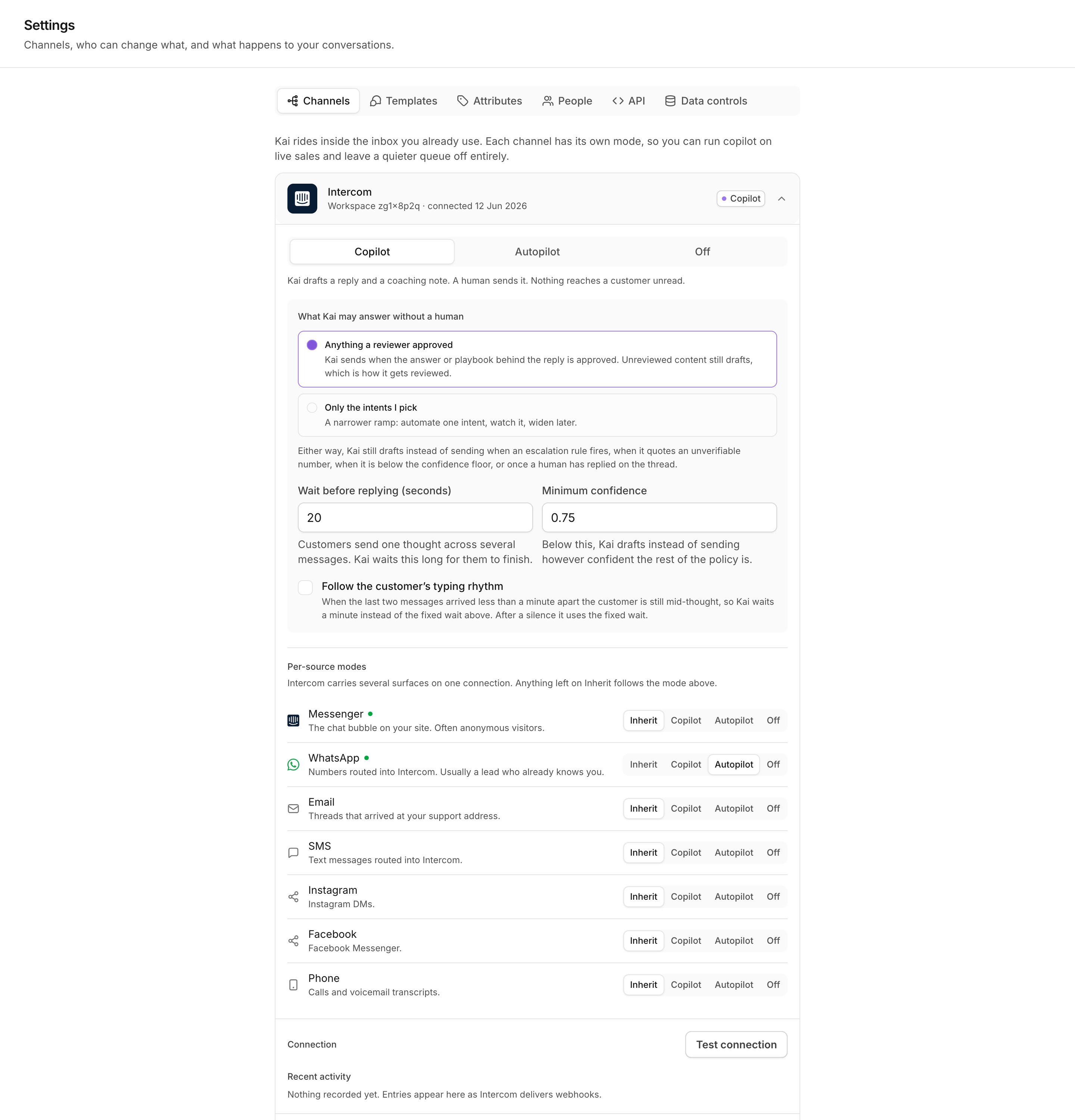
A channel card open: mode, autopilot scope, wait, confidence and per-source modes.
Test connection
An Intercom card has a Test connection button. It asks Intercom whether the stored credential still works, and names the workspace when it does. Use it when a channel goes quiet, before you change any policy. A WhatsApp card has no single button, because a WhatsApp connection is four steps that break on their own. The Delivery setup panel checks each one.Recent activity
Every channel card holds a Recent activity list. It records what arrived and what Kai refused: deliveries, rejections, subscriptions, archives, and the account notices Meta pushes about a WhatsApp Business Account. Read it when a channel looks connected but nothing happens. An account notice, such as a quality drop or a template decision, stops delivery while the credentials stay perfectly valid.Disable a channel
Select Disable channel in the card footer. Kai stops acting on that connection. Nothing changes in Intercom or in Meta. Two more actions appear only on a disabled channel:- Archive conversations files the remaining threads as history. They stay readable and searchable in Kai, and they accept no new reply. Nothing is sent to the provider.
- Delete channel removes the connection and every conversation, message and template that Kai holds from it. The provider itself is untouched.
Message templates
WhatsApp closes a conversation 24 hours after the customer’s last message. After that, a free-form message fails. To write first, or to write late, you must send a template that Meta approved. Meta owns the template library. Kai mirrors it. Open Settings → Templates.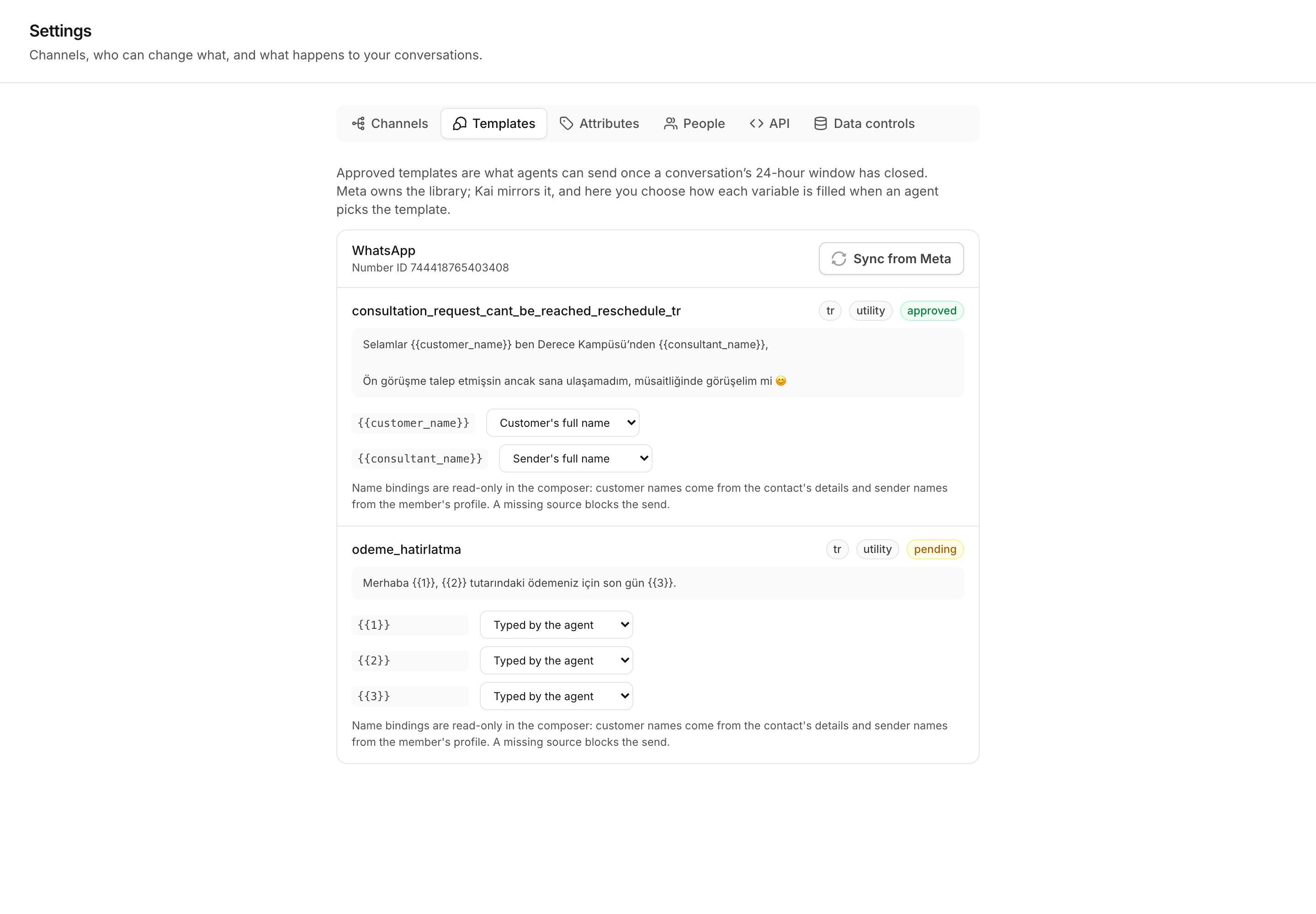
Settings, Templates: the mirrored library and how each variable is filled.
1
Sync from Meta
Select Sync from Meta. Kai pulls every template this number has, both
approved and not, and reports how many it stored and removed.
2
Read each status
A template is approved, pending, rejected, disabled or paused. Only an
approved template can be sent.
3
Bind each variable
For every
{{variable}} in the title and in the message, choose where its
value comes from: typed by the agent, or a name taken from the record. Kai
saves each choice on its own. A template with a title marks each variable
with the part that holds it, because WhatsApp lets the title and the
message spell one variable the same.Kai fills the variables of the text title and of the message. A template that
needs a value Kai cannot supply is not offered to agents, and the row says
so: an image, video or document title needs a file, and a button link with a
variable in it is not text.
Direct Send
A WhatsApp channel card holds a Direct Send setting. With it, agents write free-form service messages after the 24-hour window instead of picking a template. Meta grants this per account. Turn it on only after your account is in that beta, because elsewhere those sends fail rather than fall back to a template.Next
Copilot, autopilot and off
What each mode does, and what still holds a reply back.
People and permissions
Who may connect a channel and change its policy.