> ## Documentation Index
> Fetch the complete documentation index at: https://docs.kaisupport.com/llms.txt
> Use this file to discover all available pages before exploring further.
# Attributes, API keys and data controls
> Define what your workspace keeps on a contact, hand a key to your own systems, and erase raw uploads.
Three settings tabs sit behind this page: **Attributes**, **API** and **Data
controls**. They answer three questions. What does this workspace record? What
may a script do? What does Kai hold, and how do you remove it?
## Workspace attributes
An attribute is a field that your workspace keeps on every contact. It appears
on each contact profile, in the inbox rail, and in the API. You do not need a
release to add one.
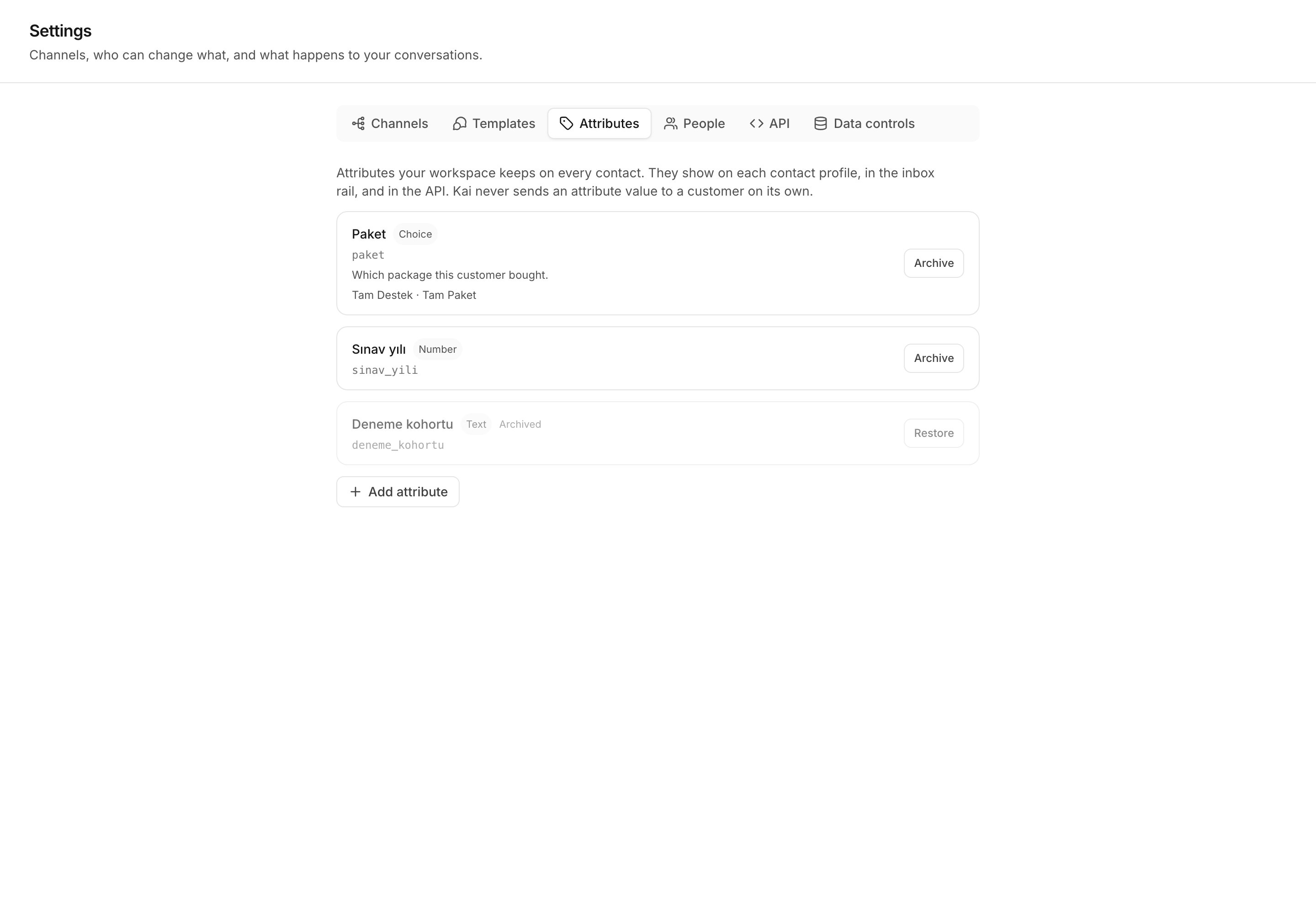 Open **Settings → Attributes** and select **Add attribute**.
The label is what a teammate reads, for example `Package`. You can change
a label at any time.
The API name is the key a script sends, for example `package`. Kai derives
it from the label, and you can edit it here. It cannot be changed later, so
a renamed label never breaks your nightly sync.
Text, Number, Yes / no, Date, Choice, Link, Email or Phone. A **Choice**
attribute also takes its options, separated by commas.
Four rules govern attributes, and each one exists because the other behaviour
loses data.
**Define the field before you fill it.** Kai refuses a value for an attribute
that the workspace does not define.
**An unknown key is refused, never dropped.** A push of 3000 contacts that
silently discards the one field you cared about is a fault that nobody finds
for months. Kai answers with an error and names the key.
**A type never changes.** Every value already recorded would become unreadable
by its own definition, and no conversion is right for all of them. To store a
different type, archive the attribute and create another one with a new API
name.
**Delete means archive.** **Archive** stops Kai offering the attribute and
refuses new writes to it. Every value that contacts already hold stays, and the
profile still shows it. **Restore** makes it writable again.
Kai never sends an attribute value to a customer on its own. Attributes
inform your team and your own systems.
Read [Workspace attributes](/concepts/attributes) for the accepted input of
each type and for the API calls.
## API keys
An API key lets your own systems push, update, assign and export contacts.
Open **Settings → API**.
Open **Settings → Attributes** and select **Add attribute**.
The label is what a teammate reads, for example `Package`. You can change
a label at any time.
The API name is the key a script sends, for example `package`. Kai derives
it from the label, and you can edit it here. It cannot be changed later, so
a renamed label never breaks your nightly sync.
Text, Number, Yes / no, Date, Choice, Link, Email or Phone. A **Choice**
attribute also takes its options, separated by commas.
Four rules govern attributes, and each one exists because the other behaviour
loses data.
**Define the field before you fill it.** Kai refuses a value for an attribute
that the workspace does not define.
**An unknown key is refused, never dropped.** A push of 3000 contacts that
silently discards the one field you cared about is a fault that nobody finds
for months. Kai answers with an error and names the key.
**A type never changes.** Every value already recorded would become unreadable
by its own definition, and no conversion is right for all of them. To store a
different type, archive the attribute and create another one with a new API
name.
**Delete means archive.** **Archive** stops Kai offering the attribute and
refuses new writes to it. Every value that contacts already hold stays, and the
profile still shows it. **Restore** makes it writable again.
Kai never sends an attribute value to a customer on its own. Attributes
inform your team and your own systems.
Read [Workspace attributes](/concepts/attributes) for the accepted input of
each type and for the API calls.
## API keys
An API key lets your own systems push, update, assign and export contacts.
Open **Settings → API**.
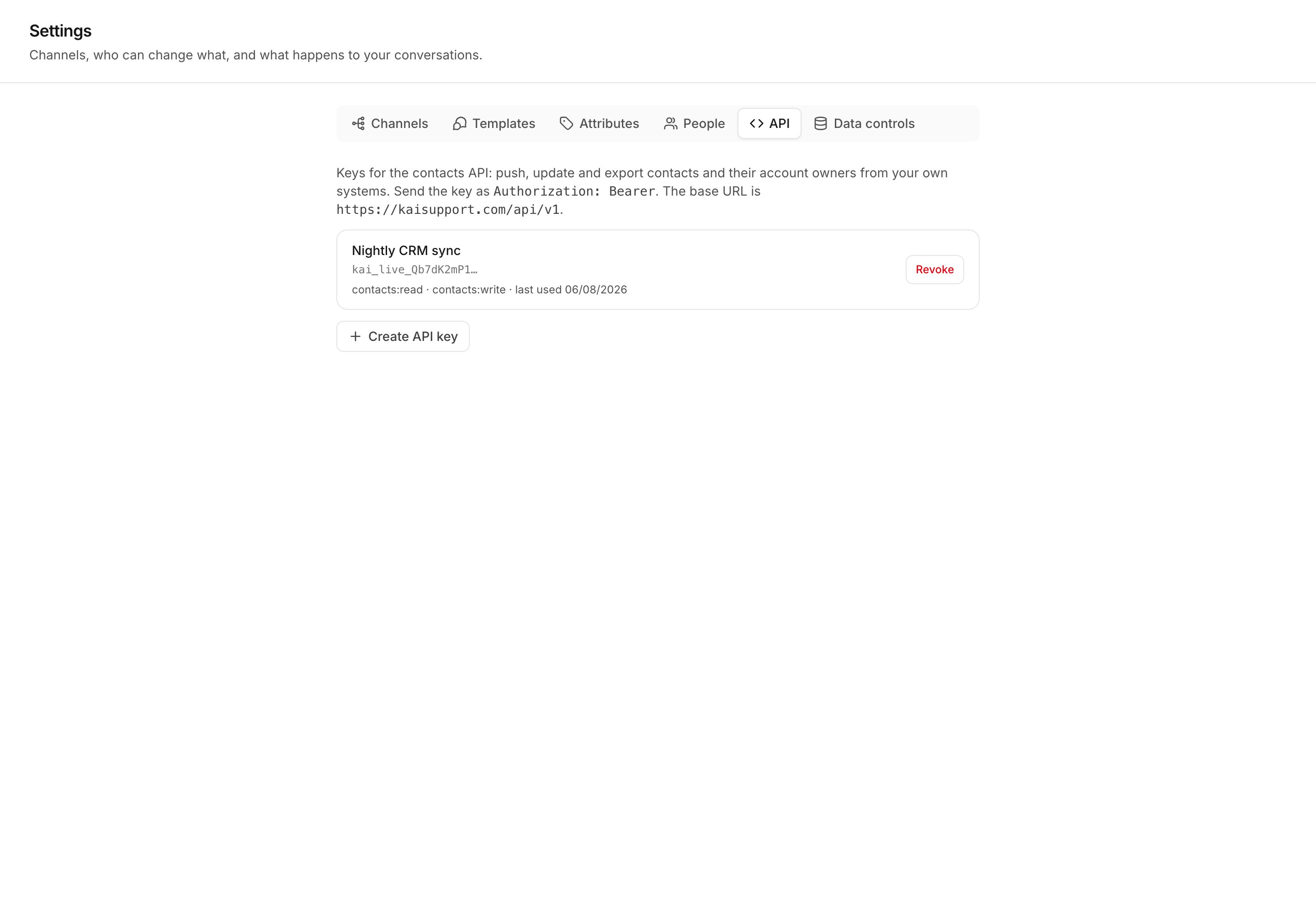 A key looks like this:
```
kai_live__
```
The `kai_` marker is what a secret scanner matches. The id is the lookup
handle, and the list shows it so you can recognise a key. The secret is 32
random bytes.
Kai shows the full key one time. Kai stores only a hash of the secret half,
so nobody can read the key again, not even Kai support. Copy it before you
dismiss the panel. If you lose a key, create another one and revoke the old
one.
Only an owner or an admin can create a key.
For example `Nightly CRM sync`. The name stays in the list after a revoke,
so the audit trail stays complete.
`contacts:read`, `contacts:write`, `attributes:read`, `attributes:write`,
`members:read`. Give a key the smallest set its job needs. A write
permission includes its read permission.
Store it in your secret manager. Select **Revoke** beside a key to stop it
working; the next request with it returns 401.
**A key's permissions are not the roles that people hold.** They are a
separate, shorter list. A machine has no role and no seat in the workspace, and
joining the two lists would make an API permission something a human role could
grant itself. See [People and permissions](/product/team) for the human list.
The header, the errors, and how a key is revoked.
Make a key and push your first contact.
## Data controls
Open **Settings → Data controls**.
A key looks like this:
```
kai_live__
```
The `kai_` marker is what a secret scanner matches. The id is the lookup
handle, and the list shows it so you can recognise a key. The secret is 32
random bytes.
Kai shows the full key one time. Kai stores only a hash of the secret half,
so nobody can read the key again, not even Kai support. Copy it before you
dismiss the panel. If you lose a key, create another one and revoke the old
one.
Only an owner or an admin can create a key.
For example `Nightly CRM sync`. The name stays in the list after a revoke,
so the audit trail stays complete.
`contacts:read`, `contacts:write`, `attributes:read`, `attributes:write`,
`members:read`. Give a key the smallest set its job needs. A write
permission includes its read permission.
Store it in your secret manager. Select **Revoke** beside a key to stop it
working; the next request with it returns 401.
**A key's permissions are not the roles that people hold.** They are a
separate, shorter list. A machine has no role and no seat in the workspace, and
joining the two lists would make an API permission something a human role could
grant itself. See [People and permissions](/product/team) for the human list.
The header, the errors, and how a key is revoked.
Make a key and push your first contact.
## Data controls
Open **Settings → Data controls**.
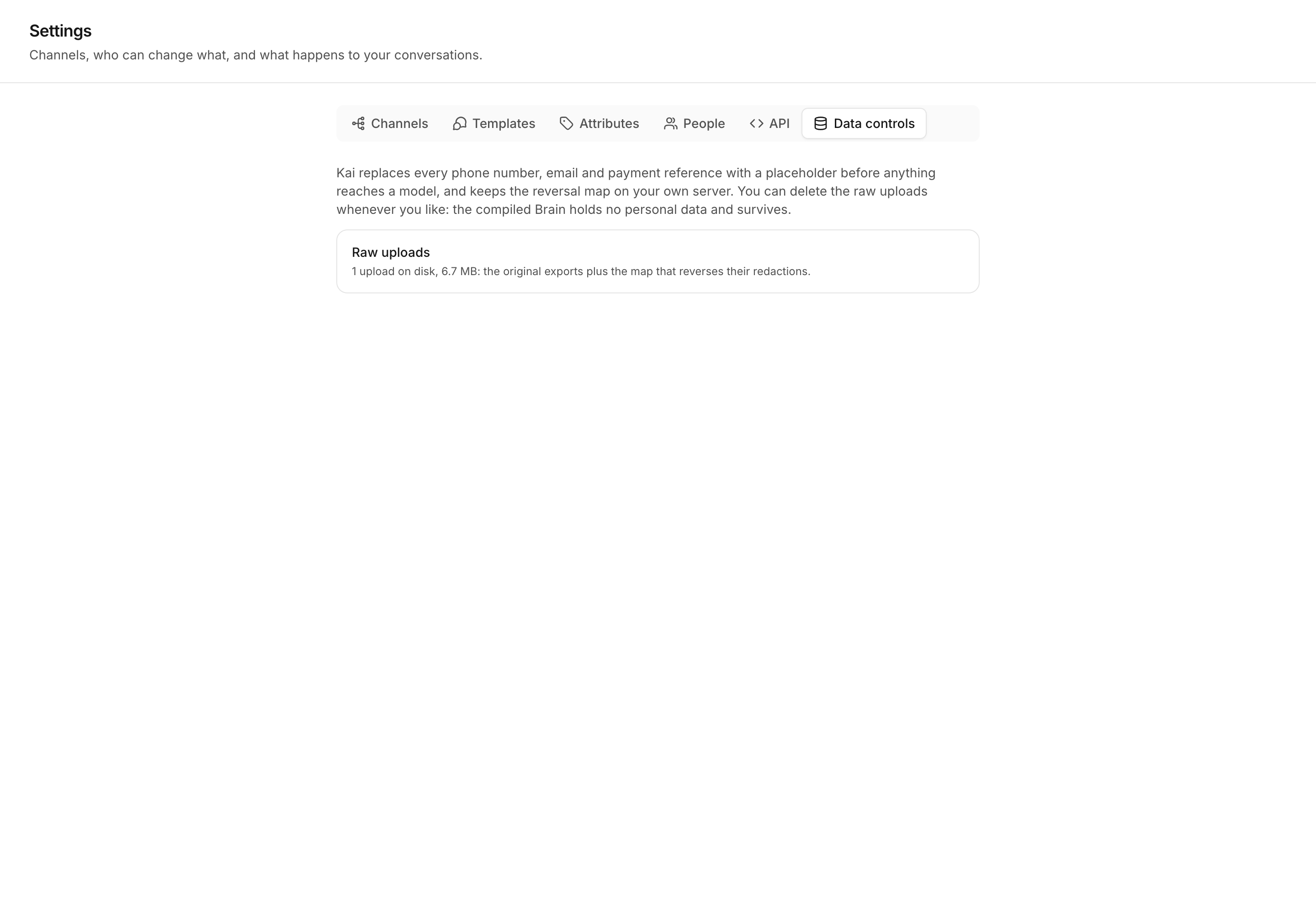 ### What Kai stores
Kai holds three kinds of data.
* **The raw uploads.** The chat export files exactly as you sent them, plus the
map that reverses their redactions.
* **The compiled Brain.** The answer library, the conversation flows, the human
handoff rules, the communication rules, the brand voice and the current
information. It holds no personal data.
* **Live conversations.** The messages your channels deliver, the contacts
behind them, and every action Kai took with its reasoning.
### Personal data becomes a placeholder
Kai replaces every phone number, email address and payment reference with a
placeholder before anything reaches a model. This happens during the import,
before the first model call.
The same value always becomes the same placeholder, so Kai still learns the
pattern without holding the value. The map that reverses the placeholders stays
on your own server.
### Erase raw uploads
Select **Erase raw uploads**, then confirm. Kai deletes the original exports
and the map that reverses their redactions.
| Erasing removes | Erasing keeps |
| -------------------------------------- | ----------------------------------------------- |
| The uploaded export files | The compiled Brain, and every published version |
| The map that reverses the placeholders | Your live conversations and contacts |
Erasing cannot be undone. Erased uploads do not come back, and no retrain can
read them again.
Only an Admin can erase. A [retrain](/product/retrain) reads earlier
uploads to reuse their labels, so erase when you no longer need the history,
not before your first retrain.
## Next
Who can create a key, and who can erase.
The rules that keep a Brain worth trusting.
### What Kai stores
Kai holds three kinds of data.
* **The raw uploads.** The chat export files exactly as you sent them, plus the
map that reverses their redactions.
* **The compiled Brain.** The answer library, the conversation flows, the human
handoff rules, the communication rules, the brand voice and the current
information. It holds no personal data.
* **Live conversations.** The messages your channels deliver, the contacts
behind them, and every action Kai took with its reasoning.
### Personal data becomes a placeholder
Kai replaces every phone number, email address and payment reference with a
placeholder before anything reaches a model. This happens during the import,
before the first model call.
The same value always becomes the same placeholder, so Kai still learns the
pattern without holding the value. The map that reverses the placeholders stays
on your own server.
### Erase raw uploads
Select **Erase raw uploads**, then confirm. Kai deletes the original exports
and the map that reverses their redactions.
| Erasing removes | Erasing keeps |
| -------------------------------------- | ----------------------------------------------- |
| The uploaded export files | The compiled Brain, and every published version |
| The map that reverses the placeholders | Your live conversations and contacts |
Erasing cannot be undone. Erased uploads do not come back, and no retrain can
read them again.
Only an Admin can erase. A [retrain](/product/retrain) reads earlier
uploads to reuse their labels, so erase when you no longer need the history,
not before your first retrain.
## Next
Who can create a key, and who can erase.
The rules that keep a Brain worth trusting.