> ## Documentation Index
> Fetch the complete documentation index at: https://docs.kaisupport.com/llms.txt
> Use this file to discover all available pages before exploring further.
# People and permissions
> The three roles in a Kai workspace, what each one may do, and where a role is assigned.
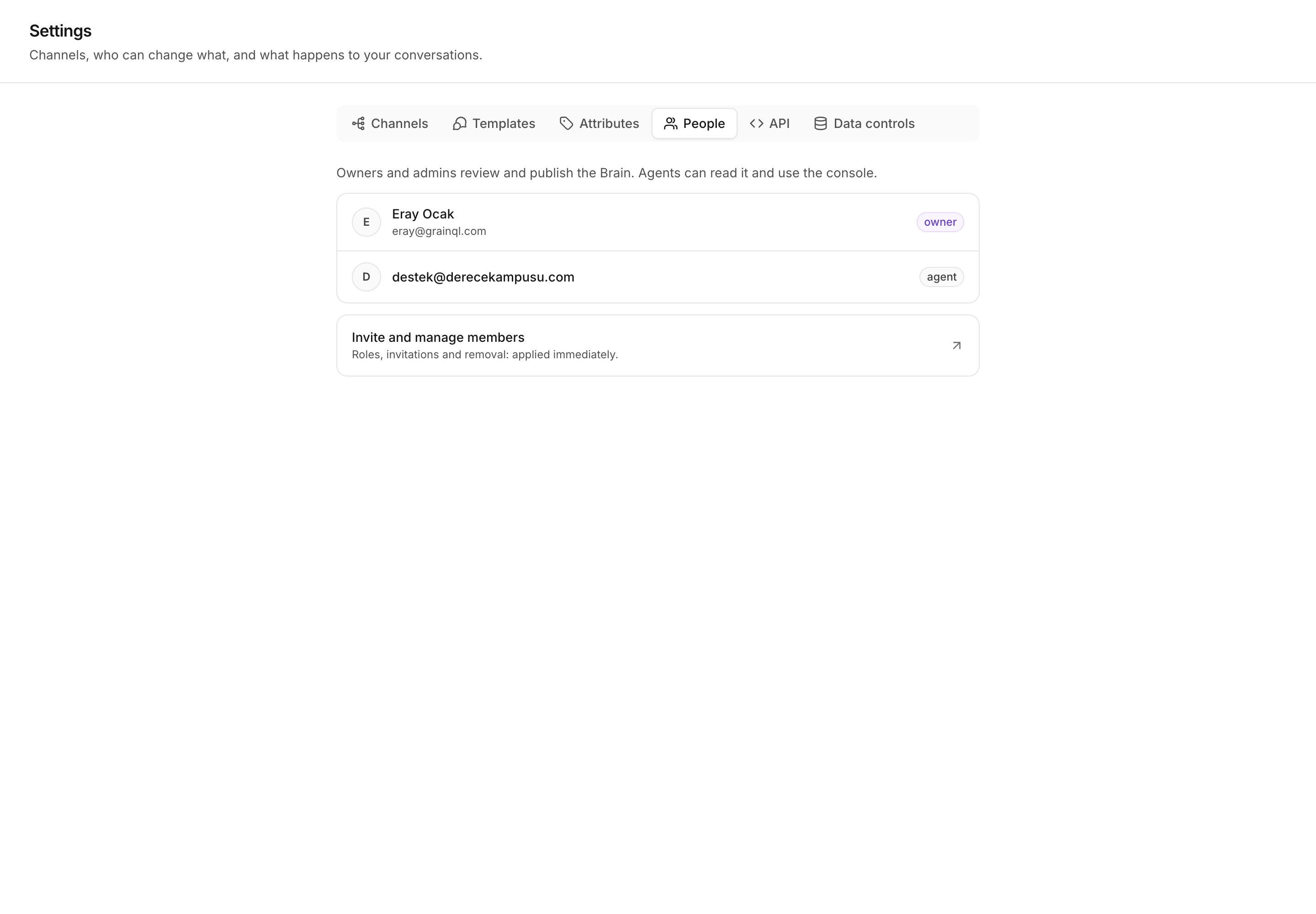
A workspace has three roles: **Admin**, **Manager** and **Agent**. Open
**Settings → People** to see everyone in the workspace, the role each one
holds, and what every role may do.
 ## The three roles
Everything, including erasing raw uploads. The role that whoever created
the workspace holds.
Runs the workspace: the Brain, the channels and the console. Cannot erase
raw uploads.
Works the inbox and asks the Brain questions. Changes nothing Kai says.
An Admin and a Manager differ in exactly one permission. Only an Admin can
erase the raw uploads, because that action cannot be undone. See
[Data controls](/product/workspace-data#data-controls).
## What each role may do
A tick means the role holds the permission. A blank means it does not.
### Inbox
| Action | Admin | Manager | Agent |
| ------------------------------------- | :---: | :-----: | :---: |
| Open the inbox and read conversations | ✓ | ✓ | ✓ |
| Send a reply | ✓ | ✓ | ✓ |
| Assign a conversation to a teammate | ✓ | ✓ | ✓ |
| See every teammate's inbox | ✓ | ✓ | |
An Agent sees **Mine** and **Unassigned**. An Admin or a Manager also sees
**All** and each teammate's own view.
### Console
| Action | Admin | Manager | Agent |
| ---------------------------------------------- | :---: | :-----: | :---: |
| Ask: read the Brain and get cited answers | ✓ | ✓ | ✓ |
| Operate: propose a change to the Brain | ✓ | ✓ | |
| Test: run the real reply path with no customer | ✓ | ✓ | |
| Review: rate what Kai already said | ✓ | ✓ | |
### Contacts
| Action | Admin | Manager | Agent |
| --------------------------------- | :---: | :-----: | :---: |
| Read a contact profile | ✓ | ✓ | ✓ |
| Edit a contact and its attributes | ✓ | ✓ | ✓ |
| Set the account owner | ✓ | ✓ | |
Editing a profile is the rep's own job, because the rep is the one who learns
that a parent is the buyer. Deciding whose account a customer is routes work
between teammates, so it stays with a manager. See
[Account owners](/concepts/account-owners).
### Brain
| Action | Admin | Manager | Agent |
| ------------------------------- | :---: | :-----: | :---: |
| Open the Brain and read it | ✓ | ✓ | |
| Approve, edit or reject an item | ✓ | ✓ | |
| Publish a version | ✓ | ✓ | |
| Start a retrain | ✓ | ✓ | |
| Change current information | ✓ | ✓ | |
### Corpus
| Action | Admin | Manager | Agent |
| --------------------- | :---: | :-----: | :---: |
| Import a chat export | ✓ | ✓ | |
| Erase the raw uploads | ✓ | | |
### Channels
| Action | Admin | Manager | Agent |
| --------------------------------------- | :---: | :-----: | :---: |
| Connect a channel and change its policy | ✓ | ✓ | |
### Activity
| Action | Admin | Manager | Agent |
| ---------------------- | :---: | :-----: | :---: |
| Read the activity feed | ✓ | ✓ | |
### API
| Action | Admin | Manager | Agent |
| -------------------------- | :---: | :-----: | :---: |
| Create and revoke API keys | ✓ | ✓ | |
An API key holds its own permissions, and those are not this list. See
[API keys](/product/workspace-data#api-keys).
## Invite a teammate and set a role
Invitations, removal and role changes all happen in one place: your
organization settings. On **Settings → People**, select **Invite and manage
members**. Kai opens the same member list that the workspace switcher opens.
There is one picker, so there is one place to change a role. Kai's own People
screen is read-only, and it adds the part the member list cannot show: what
each role means inside Kai.
A role change reaches the app when the session token refreshes. That is
under a minute, but it is not immediate. If a teammate still sees the old
screens, ask them to reload after a minute.
## The navigation is a hint, the page is the gate
Kai hides a screen that your role cannot open, and sends you to the first
screen you can open instead. That is a convenience, not the security rule.
The real check runs on the page itself, and again on every action and every
API route. A bookmark to a hidden page does not open it. Neither does a form
that a browser kept on screen after a role changed.
## Next
What the workspace stores, and who can erase it.
Connect Intercom or WhatsApp Cloud, and set a mode per source.
## The three roles
Everything, including erasing raw uploads. The role that whoever created
the workspace holds.
Runs the workspace: the Brain, the channels and the console. Cannot erase
raw uploads.
Works the inbox and asks the Brain questions. Changes nothing Kai says.
An Admin and a Manager differ in exactly one permission. Only an Admin can
erase the raw uploads, because that action cannot be undone. See
[Data controls](/product/workspace-data#data-controls).
## What each role may do
A tick means the role holds the permission. A blank means it does not.
### Inbox
| Action | Admin | Manager | Agent |
| ------------------------------------- | :---: | :-----: | :---: |
| Open the inbox and read conversations | ✓ | ✓ | ✓ |
| Send a reply | ✓ | ✓ | ✓ |
| Assign a conversation to a teammate | ✓ | ✓ | ✓ |
| See every teammate's inbox | ✓ | ✓ | |
An Agent sees **Mine** and **Unassigned**. An Admin or a Manager also sees
**All** and each teammate's own view.
### Console
| Action | Admin | Manager | Agent |
| ---------------------------------------------- | :---: | :-----: | :---: |
| Ask: read the Brain and get cited answers | ✓ | ✓ | ✓ |
| Operate: propose a change to the Brain | ✓ | ✓ | |
| Test: run the real reply path with no customer | ✓ | ✓ | |
| Review: rate what Kai already said | ✓ | ✓ | |
### Contacts
| Action | Admin | Manager | Agent |
| --------------------------------- | :---: | :-----: | :---: |
| Read a contact profile | ✓ | ✓ | ✓ |
| Edit a contact and its attributes | ✓ | ✓ | ✓ |
| Set the account owner | ✓ | ✓ | |
Editing a profile is the rep's own job, because the rep is the one who learns
that a parent is the buyer. Deciding whose account a customer is routes work
between teammates, so it stays with a manager. See
[Account owners](/concepts/account-owners).
### Brain
| Action | Admin | Manager | Agent |
| ------------------------------- | :---: | :-----: | :---: |
| Open the Brain and read it | ✓ | ✓ | |
| Approve, edit or reject an item | ✓ | ✓ | |
| Publish a version | ✓ | ✓ | |
| Start a retrain | ✓ | ✓ | |
| Change current information | ✓ | ✓ | |
### Corpus
| Action | Admin | Manager | Agent |
| --------------------- | :---: | :-----: | :---: |
| Import a chat export | ✓ | ✓ | |
| Erase the raw uploads | ✓ | | |
### Channels
| Action | Admin | Manager | Agent |
| --------------------------------------- | :---: | :-----: | :---: |
| Connect a channel and change its policy | ✓ | ✓ | |
### Activity
| Action | Admin | Manager | Agent |
| ---------------------- | :---: | :-----: | :---: |
| Read the activity feed | ✓ | ✓ | |
### API
| Action | Admin | Manager | Agent |
| -------------------------- | :---: | :-----: | :---: |
| Create and revoke API keys | ✓ | ✓ | |
An API key holds its own permissions, and those are not this list. See
[API keys](/product/workspace-data#api-keys).
## Invite a teammate and set a role
Invitations, removal and role changes all happen in one place: your
organization settings. On **Settings → People**, select **Invite and manage
members**. Kai opens the same member list that the workspace switcher opens.
There is one picker, so there is one place to change a role. Kai's own People
screen is read-only, and it adds the part the member list cannot show: what
each role means inside Kai.
A role change reaches the app when the session token refreshes. That is
under a minute, but it is not immediate. If a teammate still sees the old
screens, ask them to reload after a minute.
## The navigation is a hint, the page is the gate
Kai hides a screen that your role cannot open, and sends you to the first
screen you can open instead. That is a convenience, not the security rule.
The real check runs on the page itself, and again on every action and every
API route. A bookmark to a hidden page does not open it. Neither does a form
that a browser kept on screen after a role changed.
## Next
What the workspace stores, and who can erase it.
Connect Intercom or WhatsApp Cloud, and set a mode per source.