> ## Documentation Index
> Fetch the complete documentation index at: https://docs.kaisupport.com/llms.txt
> Use this file to discover all available pages before exploring further.
# Copilot, autopilot and off
> What each mode does, what Kai will not send even on autopilot, and a safe order to turn things on.
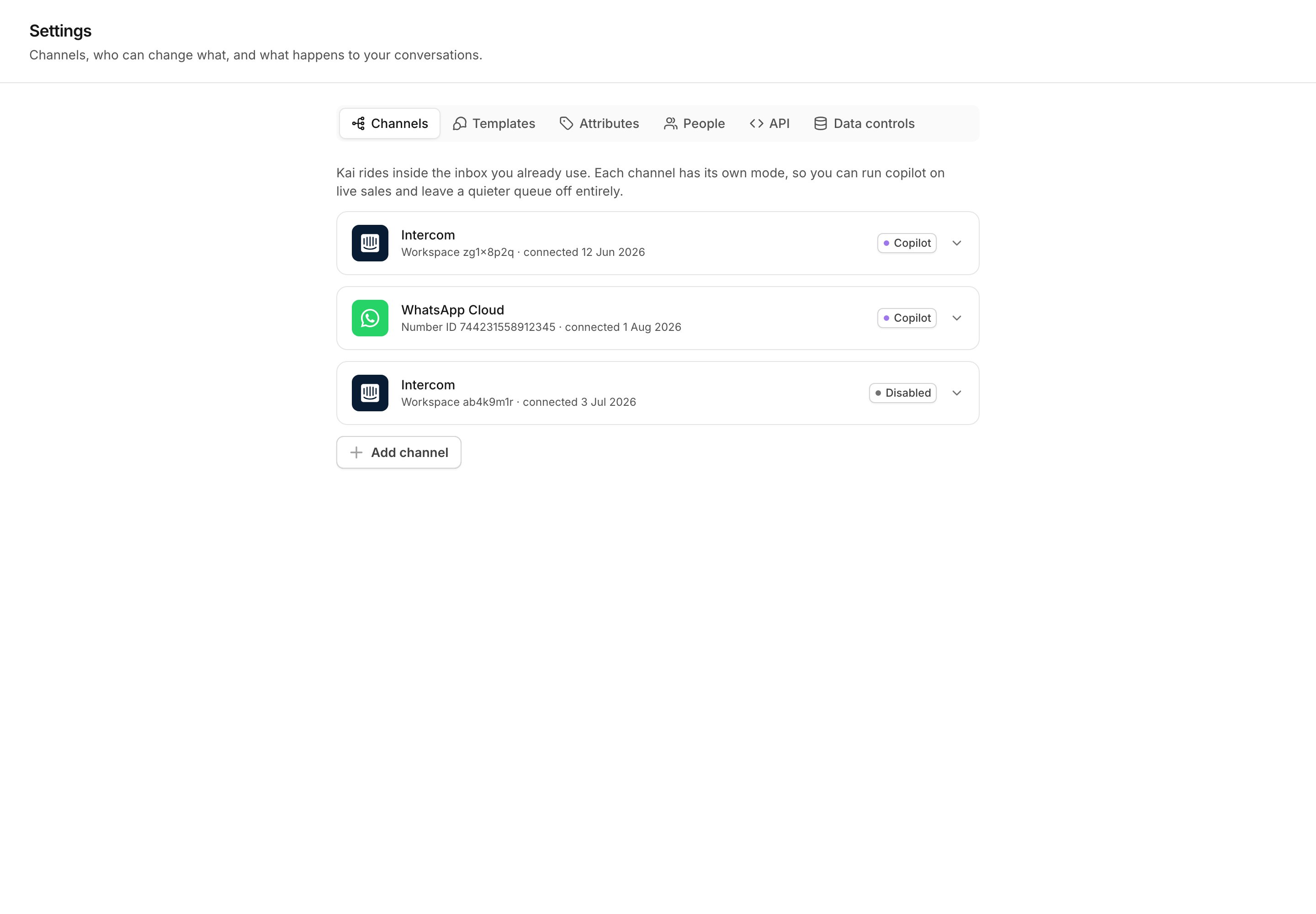
Every channel has a mode. The mode decides whether Kai writes a draft for a
person, sends the reply itself, or does nothing at all.
 ## The three modes
| Mode | What Kai does |
| ------------- | ----------------------------------------------------------------------------------------------- |
| **Copilot** | Kai writes a draft and a coaching note. A human sends it. Nothing reaches a customer unread. |
| **Autopilot** | Kai sends the reply itself, inside the limits below. Everything else still drafts or escalates. |
| **Off** | Kai watches and records, but never acts. Useful while your team reviews the Brain. |
**Off is not the same as disconnected.** Kai still receives the messages,
records them, and keeps the inbox current. It only stops writing.
## What Kai will not send, even on autopilot
Autopilot is a permission, not an override. Kai writes a draft instead of
sending when any one of these is true:
* **A human handoff rule fires.** The conversation goes to a teammate.
* **The reply quotes a number Kai cannot verify.** The number must appear in
Current Information, in a non-volatile answer, or in the conversation itself.
If not, the reply is downgraded to a draft. See
[How Kai works](/product/how-it-works).
* **Confidence is below the floor.** You set the floor per channel.
* **A human already replied on the thread.** Kai stops acting on a conversation
that a person took over.
A reply that is grounded in nothing from the Brain never sends.
## The two autopilot scopes
Open a channel card to see the settings. The block is titled **What Kai may
answer without a human**.
## The three modes
| Mode | What Kai does |
| ------------- | ----------------------------------------------------------------------------------------------- |
| **Copilot** | Kai writes a draft and a coaching note. A human sends it. Nothing reaches a customer unread. |
| **Autopilot** | Kai sends the reply itself, inside the limits below. Everything else still drafts or escalates. |
| **Off** | Kai watches and records, but never acts. Useful while your team reviews the Brain. |
**Off is not the same as disconnected.** Kai still receives the messages,
records them, and keeps the inbox current. It only stops writing.
## What Kai will not send, even on autopilot
Autopilot is a permission, not an override. Kai writes a draft instead of
sending when any one of these is true:
* **A human handoff rule fires.** The conversation goes to a teammate.
* **The reply quotes a number Kai cannot verify.** The number must appear in
Current Information, in a non-volatile answer, or in the conversation itself.
If not, the reply is downgraded to a draft. See
[How Kai works](/product/how-it-works).
* **Confidence is below the floor.** You set the floor per channel.
* **A human already replied on the thread.** Kai stops acting on a conversation
that a person took over.
A reply that is grounded in nothing from the Brain never sends.
## The two autopilot scopes
Open a channel card to see the settings. The block is titled **What Kai may
answer without a human**.
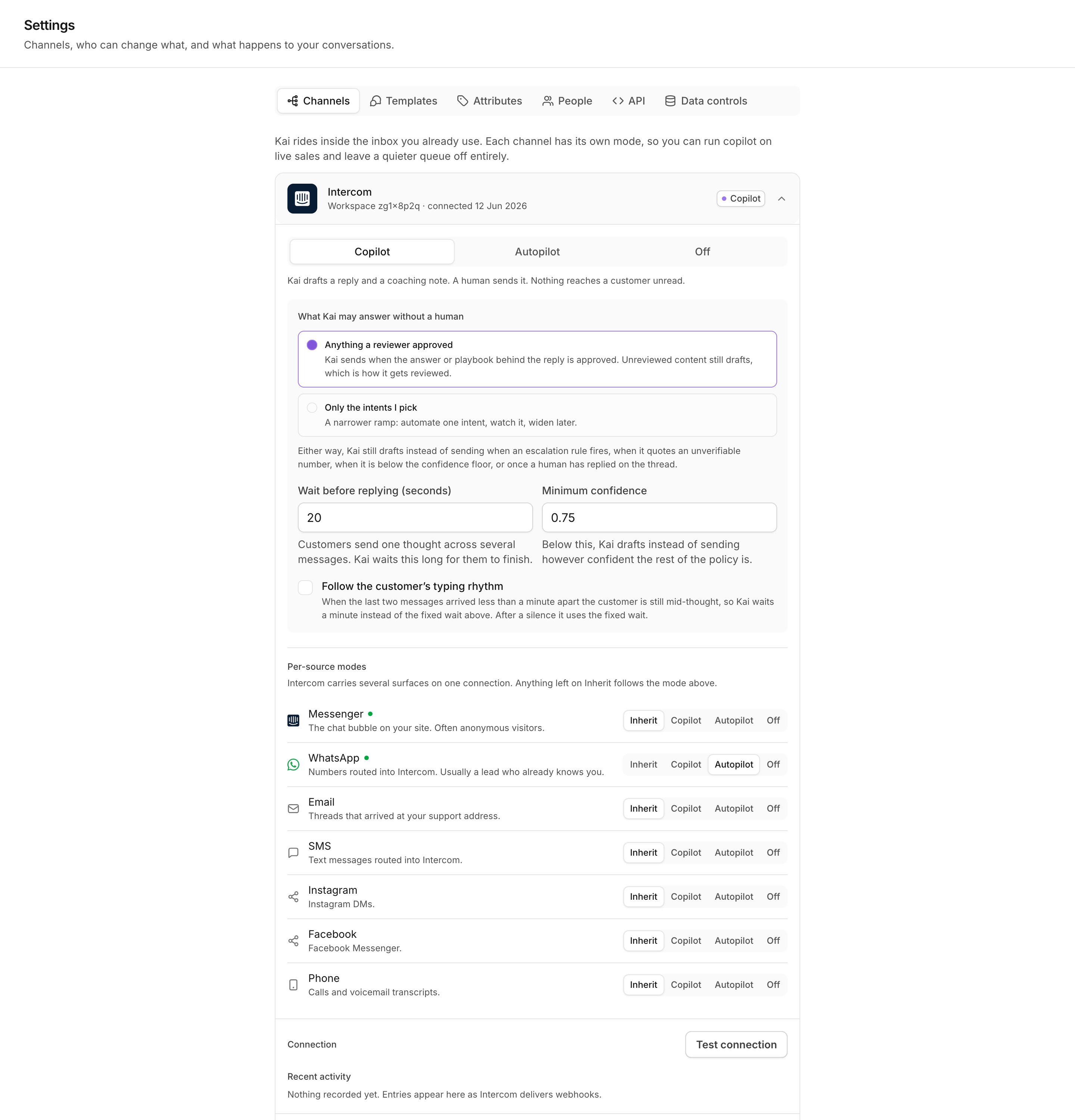 Exactly one of the two scopes applies.
### Anything a reviewer approved
This is the default. Kai sends when the answers it used and the conversation
flow it followed are **approved** or **edited** by a person. Unreviewed content
still drafts, and that is how the rest of your Brain gets reviewed from real
traffic.
Use this scope when your review queue is in good shape. It grows as your team
reviews, with no further settings to change.
### Only the intents I pick
A narrower ramp. Kai sends only for the intents you select from the list, and
drafts everything else. Automate one intent, watch it for a week, then add the
next.
A conversation flow must be marked autopilot-eligible before its intent
appears in the list. If the list is empty, this scope can never send. Use
**Anything a reviewer approved** instead, or mark a flow eligible during
review.
## Minimum confidence
**Minimum confidence** is the floor for a send. The default is `0.75`. Below
the floor, Kai writes a draft, whatever the rest of the policy allows.
Raise it if you want fewer, safer automated replies. Lower it only after you
have watched the confidence numbers on the Overview page for several weeks.
## The wait before replying
Customers send one thought across several short messages. If Kai answered the
first one, it would answer half a question.
**Wait before replying (seconds)** is how long Kai waits for the customer to
finish. The default is 20 seconds. Each new message pushes the wait forward, so
a burst of six messages produces one reply, not six.
### Follow the customer's typing rhythm
WhatsApp does not tell Kai that a customer is typing. This option infers it
from the timing instead.
If the last two messages arrived less than a minute apart, the customer is
still mid-thought, so Kai waits a minute rather than the fixed wait. After a
silence, Kai uses the fixed wait.
The option is off by default. When it is on, a second setting appears: **Never
wait longer than (seconds)**, 180 by default. It is counted from the customer's
first unanswered message, so a long burst cannot hold a reply forever.
On autopilot with this option on, Kai also shows the WhatsApp typing
indicator while it works. The reply then does not appear out of nothing.
## Per-source modes
A mode belongs to a **source**, not only to a channel.
One Intercom workspace carries the Messenger widget, WhatsApp, email and SMS on
one credential and one webhook. They are not one audience. A Messenger visitor
is often anonymous and asking a first question. A WhatsApp thread is a phone
number that already chose to reach out, and often a customer you know.
Under **Per-source modes**, each source can be set to **Copilot**,
**Autopilot** or **Off**, or left on **Inherit**. Inherit is the resting state:
it stores nothing, and it follows the channel mode, including any later change
to it.
| Source | What it usually carries |
| ------------- | ------------------------------------------------------------------- |
| **Messenger** | The chat bubble on your site. Often anonymous visitors. |
| **WhatsApp** | Numbers routed into Intercom. Usually a lead who already knows you. |
| **Email** | Threads that arrived at your support address. |
| **SMS** | Text messages routed into Intercom. |
A source that Kai has not seen yet still follows the channel mode. Nothing
breaks when your provider adds a new source type.
## A recommended ramp
Every channel on **Copilot**. Your team reads and sends every reply. Watch
**Draft acceptance** on the Overview page. Fix the answers your team keeps
rewriting, in the review queue.
Pick the source with the highest draft acceptance. Set that one source to
**Autopilot** under **Per-source modes**, and leave the rest on
**Inherit**. Use **Only the intents I pick**, and select one intent that
your team almost never corrects.
After a week with no bad reply, add a second intent, or switch that source
to **Anything a reviewer approved**. The review queue then decides what Kai
may send, and it grows as your team works.
Move the next source to **Autopilot**, one at a time. Keep at least one
source in copilot for a while, as a control.
If something goes wrong, set the source or the channel back to **Copilot**
and select **Save policy**. The change applies to the next message. You do
not need to disconnect anything.
## Next
The groundedness rule, the takeover rule, and Brain versions.
The first run, from sign-up to the first draft.
Exactly one of the two scopes applies.
### Anything a reviewer approved
This is the default. Kai sends when the answers it used and the conversation
flow it followed are **approved** or **edited** by a person. Unreviewed content
still drafts, and that is how the rest of your Brain gets reviewed from real
traffic.
Use this scope when your review queue is in good shape. It grows as your team
reviews, with no further settings to change.
### Only the intents I pick
A narrower ramp. Kai sends only for the intents you select from the list, and
drafts everything else. Automate one intent, watch it for a week, then add the
next.
A conversation flow must be marked autopilot-eligible before its intent
appears in the list. If the list is empty, this scope can never send. Use
**Anything a reviewer approved** instead, or mark a flow eligible during
review.
## Minimum confidence
**Minimum confidence** is the floor for a send. The default is `0.75`. Below
the floor, Kai writes a draft, whatever the rest of the policy allows.
Raise it if you want fewer, safer automated replies. Lower it only after you
have watched the confidence numbers on the Overview page for several weeks.
## The wait before replying
Customers send one thought across several short messages. If Kai answered the
first one, it would answer half a question.
**Wait before replying (seconds)** is how long Kai waits for the customer to
finish. The default is 20 seconds. Each new message pushes the wait forward, so
a burst of six messages produces one reply, not six.
### Follow the customer's typing rhythm
WhatsApp does not tell Kai that a customer is typing. This option infers it
from the timing instead.
If the last two messages arrived less than a minute apart, the customer is
still mid-thought, so Kai waits a minute rather than the fixed wait. After a
silence, Kai uses the fixed wait.
The option is off by default. When it is on, a second setting appears: **Never
wait longer than (seconds)**, 180 by default. It is counted from the customer's
first unanswered message, so a long burst cannot hold a reply forever.
On autopilot with this option on, Kai also shows the WhatsApp typing
indicator while it works. The reply then does not appear out of nothing.
## Per-source modes
A mode belongs to a **source**, not only to a channel.
One Intercom workspace carries the Messenger widget, WhatsApp, email and SMS on
one credential and one webhook. They are not one audience. A Messenger visitor
is often anonymous and asking a first question. A WhatsApp thread is a phone
number that already chose to reach out, and often a customer you know.
Under **Per-source modes**, each source can be set to **Copilot**,
**Autopilot** or **Off**, or left on **Inherit**. Inherit is the resting state:
it stores nothing, and it follows the channel mode, including any later change
to it.
| Source | What it usually carries |
| ------------- | ------------------------------------------------------------------- |
| **Messenger** | The chat bubble on your site. Often anonymous visitors. |
| **WhatsApp** | Numbers routed into Intercom. Usually a lead who already knows you. |
| **Email** | Threads that arrived at your support address. |
| **SMS** | Text messages routed into Intercom. |
A source that Kai has not seen yet still follows the channel mode. Nothing
breaks when your provider adds a new source type.
## A recommended ramp
Every channel on **Copilot**. Your team reads and sends every reply. Watch
**Draft acceptance** on the Overview page. Fix the answers your team keeps
rewriting, in the review queue.
Pick the source with the highest draft acceptance. Set that one source to
**Autopilot** under **Per-source modes**, and leave the rest on
**Inherit**. Use **Only the intents I pick**, and select one intent that
your team almost never corrects.
After a week with no bad reply, add a second intent, or switch that source
to **Anything a reviewer approved**. The review queue then decides what Kai
may send, and it grows as your team works.
Move the next source to **Autopilot**, one at a time. Keep at least one
source in copilot for a while, as a control.
If something goes wrong, set the source or the channel back to **Copilot**
and select **Save policy**. The change applies to the next message. You do
not need to disconnect anything.
## Next
The groundedness rule, the takeover rule, and Brain versions.
The first run, from sign-up to the first draft.