> ## Documentation Index
> Fetch the complete documentation index at: https://docs.kaisupport.com/llms.txt
> Use this file to discover all available pages before exploring further.
# The inbox
> Read the queue, reply to a customer, assign a conversation, and close it.
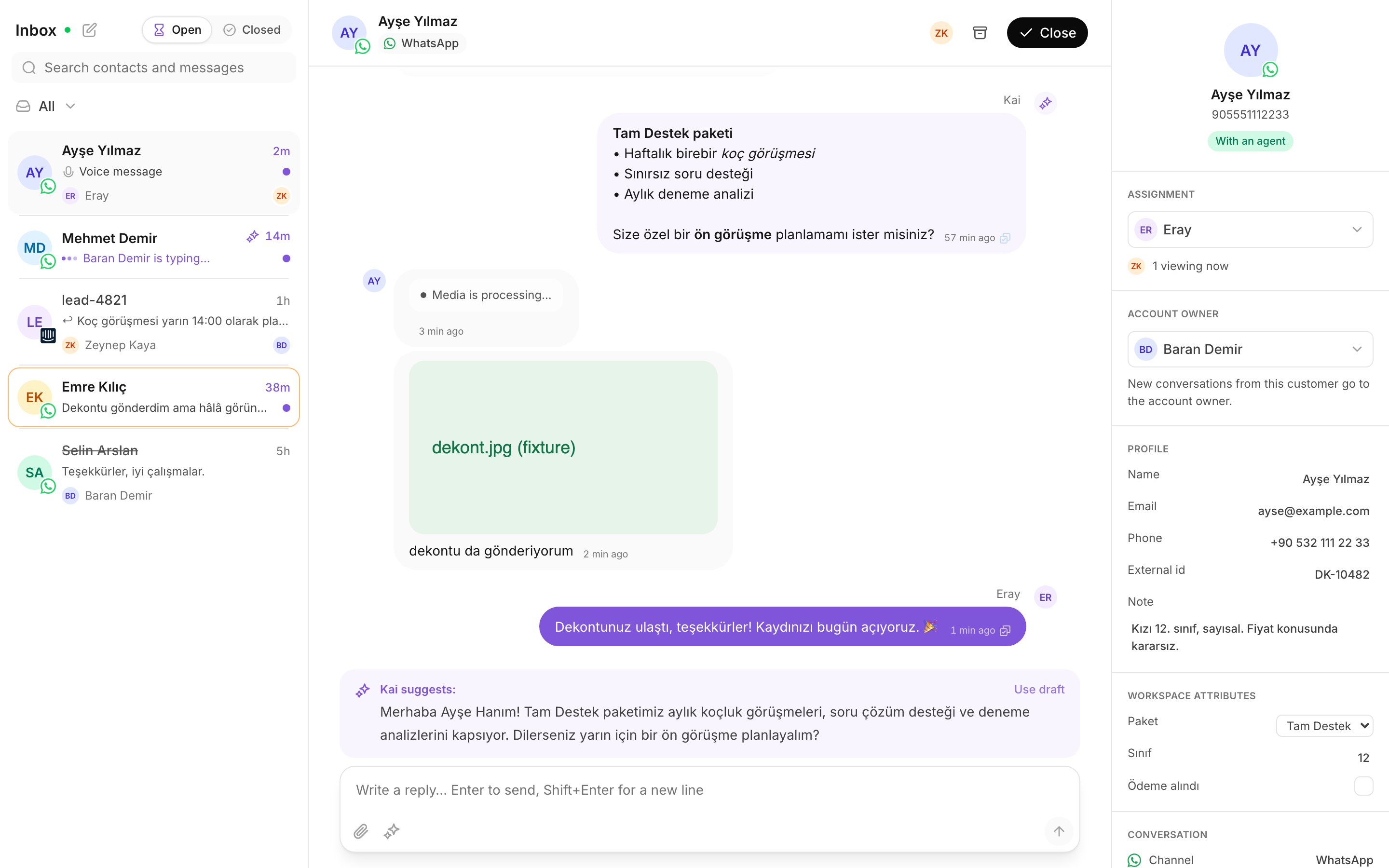
The inbox is where your team talks to customers. It has three panes: the
conversation list on the left, the thread in the middle, and the details panel
on the right.
This page explains every control. A new teammate should read
[Kai for support agents](/product/agent) first: it teaches the same inbox as
a job, one task per page.
 ## The conversation list
 ### Open and closed
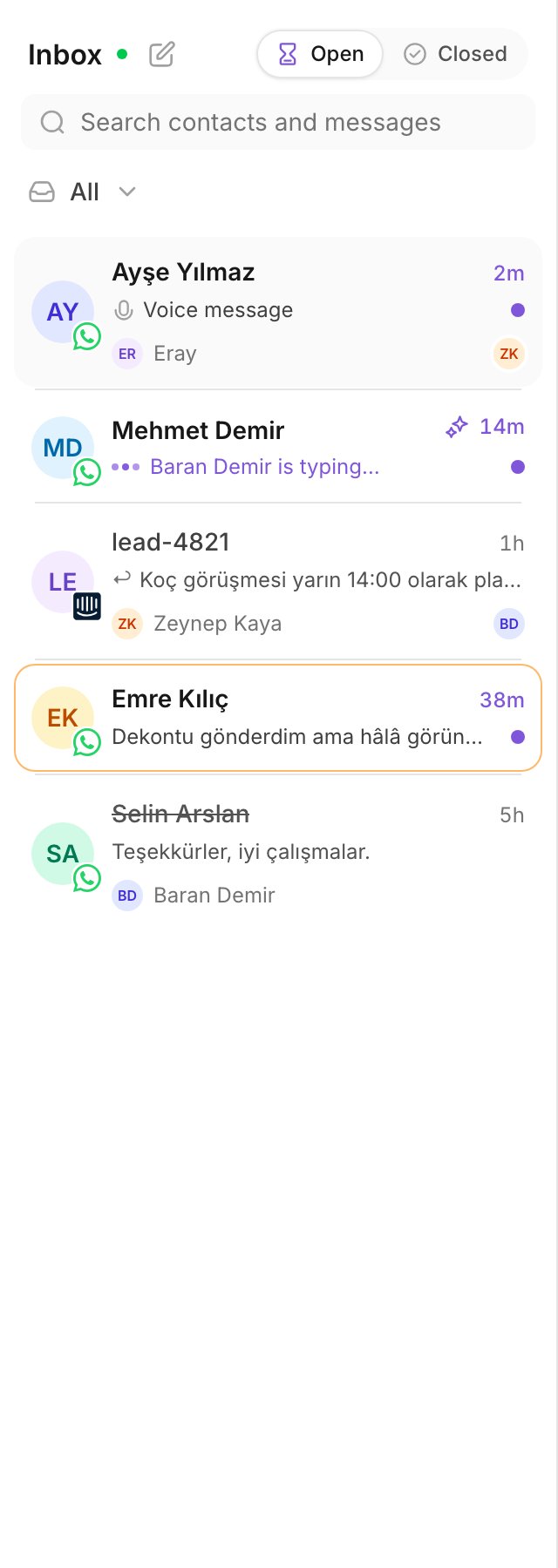
The segment at the top of the list has two positions, **Open** and **Closed**.
Open holds every conversation that still waits for someone. Closed holds the
conversations your team finished.
### Views
**Views** is a menu, not a row of buttons. It holds:
| View | What it shows |
| ------------------------------- | ------------------------------------------ |
| **Mine** | The conversations assigned to you. |
| **Unassigned** | The conversations nobody holds yet. |
| **All** | Every conversation in the workspace. |
| A teammate, under **Teammates** | The conversations assigned to that person. |
An Agent sees **Mine** and **Unassigned**. An Admin or a Manager also sees
**All** and each teammate. See [Your team](/product/team) for what each role
may do.
### Unread
Unread is counted per teammate. A conversation is unread for you until you
open it. Your unread rows are bold and carry a dot. A teammate who reads the
same thread does not clear it for you.
### Search
The search box reads contacts and messages. Type at least two characters.
Search is a mode, not a filter. The results ignore the view and the open or
closed filter, because a thread that you look for by name is often not in the
view you are in. Press `Escape` to leave the search.
### Live traffic
The header shows **Live** when the realtime connection is up. It shows
**Reconnecting…** when the connection drops. New messages still arrive after a
reconnect. When a teammate types in a conversation, the row shows the typing
indicator.
## The thread
The middle pane holds the messages, newest at the bottom. Select **Load
earlier messages** to read further back.
* A message from Kai carries the name **Kai** and a lighter bubble.
* A message from a teammate carries that teammate's name.
* An **Internal note** is an aside between teammates. The customer never reads
it.
### Delivery ticks
Every message that your side sent carries a tick beside the time.
| Tick | Meaning |
| --------------- | ----------------------------------- |
| One check | Sent to the channel. |
| Two checks | Delivered to the customer's device. |
| Two blue checks | Read by the customer. |
A status only moves forward. If a delivery fails, the message shows **Not
delivered** and the reason.
### Voice notes and attachments
Kai copies inbound media to its own storage the moment it arrives, because a
provider link expires in minutes. While the copy runs, the bubble shows
**Media is processing…**.
* A voice note plays in the bubble. Under the player, Kai shows the transcript
in quotation marks.
* An image renders in the bubble. Select it to open the full size.
* Any other file shows its name and its size. Select it to download it.
To send a file, use the attach button in the composer.
## Assignment
One conversation has one assignee. The composer is locked until somebody holds
the conversation, because two teammates answering one customer is the failure
this queue exists to prevent.
The bar above the composer says **Nobody has this conversation yet.** If
Kai handed it over, it says **Kai handed this conversation over. Nobody
has it yet.**
Select **Assign to me**. To give it to somebody else, use **Assign to
someone else** in the same bar.
You can also change the assignee from the **Assignment** section of the
details panel, at any time.
If the customer has an account owner, Kai assigns the conversation to that
person while it is still unassigned. Ownership routes new work. It never
takes a thread back from the teammate a manager gave it to. See
[Contacts and account owners](/product/contacts).
## Sending a message marks a takeover
When a person sends a message on a thread, Kai stops answering that thread.
The activity feed records the conversation as **Autopilot muted: a human took
over**.
This is a runtime rule, not a setting. It holds in copilot and in autopilot,
and it holds whether the person replied from Kai or from the channel's own
inbox.
To get one more suggestion after a takeover, ask for it. See
[Working with Kai's drafts](/product/drafts).
## Closing a conversation
Select **Close** in the thread header. The conversation leaves the open queue.
Kai asks you to confirm, and tells you that you can reopen it at any time.
Select **Reopen** to put it back in the open queue.
**Archive** is not the same as close. An archived thread is read only and
permanent. If the customer writes again, the message starts a new
conversation.
## The details panel
### Open and closed
The segment at the top of the list has two positions, **Open** and **Closed**.
Open holds every conversation that still waits for someone. Closed holds the
conversations your team finished.
### Views
**Views** is a menu, not a row of buttons. It holds:
| View | What it shows |
| ------------------------------- | ------------------------------------------ |
| **Mine** | The conversations assigned to you. |
| **Unassigned** | The conversations nobody holds yet. |
| **All** | Every conversation in the workspace. |
| A teammate, under **Teammates** | The conversations assigned to that person. |
An Agent sees **Mine** and **Unassigned**. An Admin or a Manager also sees
**All** and each teammate. See [Your team](/product/team) for what each role
may do.
### Unread
Unread is counted per teammate. A conversation is unread for you until you
open it. Your unread rows are bold and carry a dot. A teammate who reads the
same thread does not clear it for you.
### Search
The search box reads contacts and messages. Type at least two characters.
Search is a mode, not a filter. The results ignore the view and the open or
closed filter, because a thread that you look for by name is often not in the
view you are in. Press `Escape` to leave the search.
### Live traffic
The header shows **Live** when the realtime connection is up. It shows
**Reconnecting…** when the connection drops. New messages still arrive after a
reconnect. When a teammate types in a conversation, the row shows the typing
indicator.
## The thread
The middle pane holds the messages, newest at the bottom. Select **Load
earlier messages** to read further back.
* A message from Kai carries the name **Kai** and a lighter bubble.
* A message from a teammate carries that teammate's name.
* An **Internal note** is an aside between teammates. The customer never reads
it.
### Delivery ticks
Every message that your side sent carries a tick beside the time.
| Tick | Meaning |
| --------------- | ----------------------------------- |
| One check | Sent to the channel. |
| Two checks | Delivered to the customer's device. |
| Two blue checks | Read by the customer. |
A status only moves forward. If a delivery fails, the message shows **Not
delivered** and the reason.
### Voice notes and attachments
Kai copies inbound media to its own storage the moment it arrives, because a
provider link expires in minutes. While the copy runs, the bubble shows
**Media is processing…**.
* A voice note plays in the bubble. Under the player, Kai shows the transcript
in quotation marks.
* An image renders in the bubble. Select it to open the full size.
* Any other file shows its name and its size. Select it to download it.
To send a file, use the attach button in the composer.
## Assignment
One conversation has one assignee. The composer is locked until somebody holds
the conversation, because two teammates answering one customer is the failure
this queue exists to prevent.
The bar above the composer says **Nobody has this conversation yet.** If
Kai handed it over, it says **Kai handed this conversation over. Nobody
has it yet.**
Select **Assign to me**. To give it to somebody else, use **Assign to
someone else** in the same bar.
You can also change the assignee from the **Assignment** section of the
details panel, at any time.
If the customer has an account owner, Kai assigns the conversation to that
person while it is still unassigned. Ownership routes new work. It never
takes a thread back from the teammate a manager gave it to. See
[Contacts and account owners](/product/contacts).
## Sending a message marks a takeover
When a person sends a message on a thread, Kai stops answering that thread.
The activity feed records the conversation as **Autopilot muted: a human took
over**.
This is a runtime rule, not a setting. It holds in copilot and in autopilot,
and it holds whether the person replied from Kai or from the channel's own
inbox.
To get one more suggestion after a takeover, ask for it. See
[Working with Kai's drafts](/product/drafts).
## Closing a conversation
Select **Close** in the thread header. The conversation leaves the open queue.
Kai asks you to confirm, and tells you that you can reopen it at any time.
Select **Reopen** to put it back in the open queue.
**Archive** is not the same as close. An archived thread is read only and
permanent. If the customer writes again, the message starts a new
conversation.
## The details panel
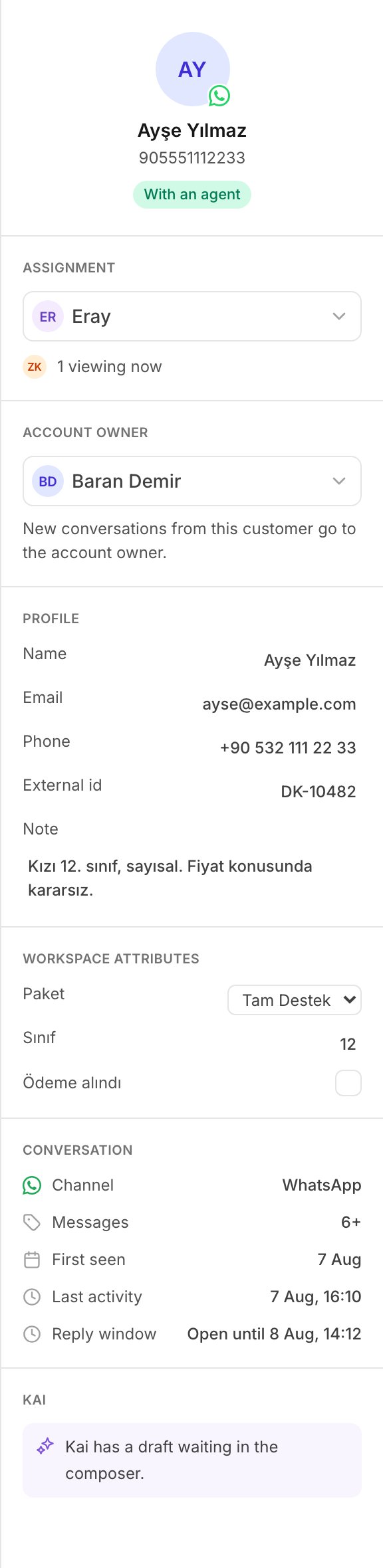 The right pane holds, from the top:
* the customer's name, and a badge that reads **Kai**, **With an agent**,
**Open**, **closed** or **Archived**;
* **Assignment**, and the teammates who look at this conversation right now;
* **Account owner**, the teammate who owns this customer;
* **Profile** and **Workspace attributes**, the record of the customer;
* **Conversation**: the channel, the message count, **First seen**, **Last
activity**, and **Reply window**;
* a **Kai** section, when Kai has a draft waiting in the composer.
The panel is hidden on a narrow window. The thread header keeps its own
assignee control, so assignment is never out of reach.
## The WhatsApp 24 hour window
WhatsApp allows a free-form reply only inside 24 hours of the customer's last
message. The details panel shows this under **Reply window**: either the time
the window closes, or **Closed**.
Inside the window, write and send as normal.
Outside the window, the composer says: *The 24-hour WhatsApp window has
closed. Only template messages can be sent until the customer writes again.*
This is Meta's error 131047, in words. The composer then offers the templates
that Meta approved for your account.
The composer changes to the template picker.
Kai fills the variables it can. **From your profile** takes your name.
**From contact details** takes the customer's name.
If your profile has no name, Kai asks you to add it first.
The customer's reply opens a new 24 hour window, and the plain composer comes
back.
Some accounts have Meta's Direct Send. With it, the composer offers **Write
a message** as well, and Meta builds a matching template from what you
write. Keep those messages to service updates, never to promotions.
## Starting a conversation
Select **New message** to write first.
Search for somebody you already talked to, or type a full phone number in
international format, for example `905321234567`. Kai asks you to confirm that
this person agreed to receive messages from you. Meta and KVKK both require
consent, and Kai holds no record of it.
## Next
Use a draft, edit it, and rate it so the next retrain learns from it.
Who a contact is, and how ownership routes new conversations.
The right pane holds, from the top:
* the customer's name, and a badge that reads **Kai**, **With an agent**,
**Open**, **closed** or **Archived**;
* **Assignment**, and the teammates who look at this conversation right now;
* **Account owner**, the teammate who owns this customer;
* **Profile** and **Workspace attributes**, the record of the customer;
* **Conversation**: the channel, the message count, **First seen**, **Last
activity**, and **Reply window**;
* a **Kai** section, when Kai has a draft waiting in the composer.
The panel is hidden on a narrow window. The thread header keeps its own
assignee control, so assignment is never out of reach.
## The WhatsApp 24 hour window
WhatsApp allows a free-form reply only inside 24 hours of the customer's last
message. The details panel shows this under **Reply window**: either the time
the window closes, or **Closed**.
Inside the window, write and send as normal.
Outside the window, the composer says: *The 24-hour WhatsApp window has
closed. Only template messages can be sent until the customer writes again.*
This is Meta's error 131047, in words. The composer then offers the templates
that Meta approved for your account.
The composer changes to the template picker.
Kai fills the variables it can. **From your profile** takes your name.
**From contact details** takes the customer's name.
If your profile has no name, Kai asks you to add it first.
The customer's reply opens a new 24 hour window, and the plain composer comes
back.
Some accounts have Meta's Direct Send. With it, the composer offers **Write
a message** as well, and Meta builds a matching template from what you
write. Keep those messages to service updates, never to promotions.
## Starting a conversation
Select **New message** to write first.
Search for somebody you already talked to, or type a full phone number in
international format, for example `905321234567`. Kai asks you to confirm that
this person agreed to receive messages from you. Meta and KVKK both require
consent, and Kai holds no record of it.
## Next
Use a draft, edit it, and rate it so the next retrain learns from it.
Who a contact is, and how ownership routes new conversations.