> ## Documentation Index
> Fetch the complete documentation index at: https://docs.kaisupport.com/llms.txt
> Use this file to discover all available pages before exploring further.
# Working with Kai's drafts
> Use a draft, edit it before you send it, and rate it so the next retrain learns from it.
In copilot, Kai reads the conversation and writes the reply for you. You read
it, change what you want, and send it. Nothing reaches the customer until a
person sends it.
This page is the reference. To train a new teammate, send them
[Send a Kai draft](/product/agent/send-a-kai-draft) instead. It teaches the
same thing as a task, in ten minutes.
 ## What "Kai suggests:" means
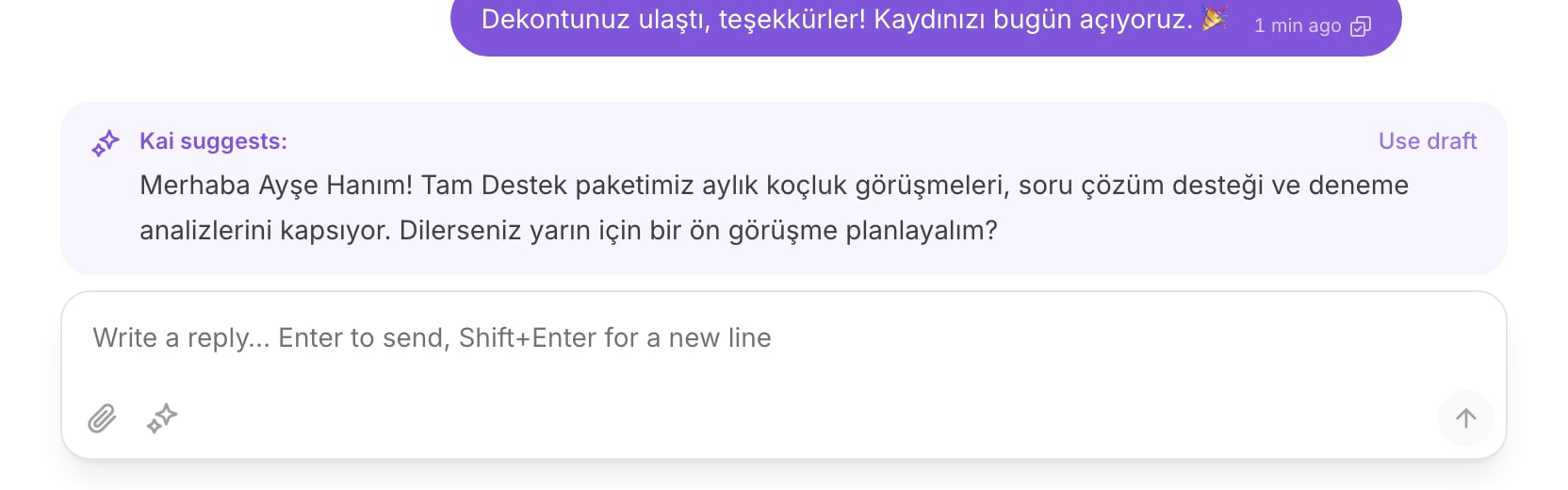
The card above the composer holds a reply that Kai wrote for this
conversation. The card says **Kai suggests:** on the left and **Use draft** on
the right.
The draft is not sent. It is not visible to the customer. It waits in your
composer until you act on it.
The details panel also shows **Kai has a draft waiting in the composer.**, so
you can see from the list that this thread has something ready.
## Use a draft
The card shows the first lines. Select the card to load the whole text.
The text moves into the composer. The card disappears.
The text is now yours. Change a word, cut a sentence, add the detail Kai
could not know.
Press `Enter` to send. Press `Shift`+`Enter` for a new line.
If the draft is wrong, ignore it. Write your own reply. The draft goes away
when your side speaks, because it answers a question the conversation has
moved past.
The composer is locked until somebody holds the conversation. Select
**Assign to me** first. See [The inbox](/product/inbox).
## When Kai drafts instead of replying by itself
In copilot, Kai always drafts. Every reply passes a person.
In autopilot, Kai sends by itself, but it steps back to a draft in these
cases:
* A human handoff rule fired. Kai hands the conversation to a teammate.
* The reply quotes a number that Kai cannot ground. See below.
* Confidence is under the floor set for the channel.
* A person already replied on this thread.
* The answer, or the conversation flow behind it, is not reviewed. Autopilot
uses reviewed content only.
**Numbers are grounded.** A number in a reply must appear in your current
information, in an answer that is not marked volatile, or in the
conversation itself. If Kai cannot find it, the reply becomes a draft. A
price that Kai cannot verify never reaches a customer on its own.
Read [Copilot and autopilot](/product/modes) for the whole gate.
## The coaching note on Intercom
Kai works inside the inbox your team already uses. On Intercom, Kai does not
create a new surface:
* a draft arrives as an **internal note** on the conversation;
* a handoff arrives as an **assignment** to a teammate.
The note holds the suggested reply and the coaching note: what Kai read, and
why it answered that way. Your reps read it in the Intercom inbox and reply
there.
In the Kai inbox, the same content renders as the draft card above the
composer.
## Ask Kai for a draft
Kai stops drafting on its own once a person owns a conversation. To get a
suggestion after a takeover, after a handoff, or after an assignment, ask for
it.
It sits beside the attach button. Its label is **Ask Kai for a draft**.
The composer says **Kai is reading the conversation…**. A model call takes
a few seconds.
Kai returns a draft in the usual card. If a handoff rule matched instead,
Kai returns **Kai would hand this over:** and the reason. That is an
answer, not an error.
A draft you asked for outranks the one the reply path left earlier. You asked
because the old one did not answer the question.
## Give feedback, so the next retrain learns
A rating is not a score. It is the gate that lets a live reply into the next
training corpus.
Kai never learns from its own unreviewed output. A reply that Kai sent, or a
draft that Kai wrote, enters the corpus only in two cases:
* a reviewer rated it **Good output**;
* a reviewer wrote a **Corrected reply**. The correction replaces what Kai
actually said, so the corpus holds your words.
Everything else is dropped. Internal notes are dropped. A conversation marked
**Needs follow-up** is left out whole.
Go to **Console**, then select **Review**. See
[The console](/product/console).
The list holds real customer conversations, newest activity first.
Select **Good output** or **Needs work**.
Under **Correct reply**, write the response Kai should have produced.
A note steers the next compile. It never adds a fact your team did not
write.
Feedback saves as you go. The console confirms with **Saved**, and shows
**Feedback is saved for the next training pass**.
Rate the replies that were wrong first. A correction teaches more than an
approval, and it is the one thing a retrain cannot get from anywhere else.
A rating is not the same signal as **Draft acceptance** on the Overview page.
That number comes from what the agent did with the draft: sent it as it was,
edited it, or ignored it. Kai records that by itself. A rating is the sentence
that says why. See [The overview page](/product/dashboard).
## What "Kai suggests:" means
The card above the composer holds a reply that Kai wrote for this
conversation. The card says **Kai suggests:** on the left and **Use draft** on
the right.
The draft is not sent. It is not visible to the customer. It waits in your
composer until you act on it.
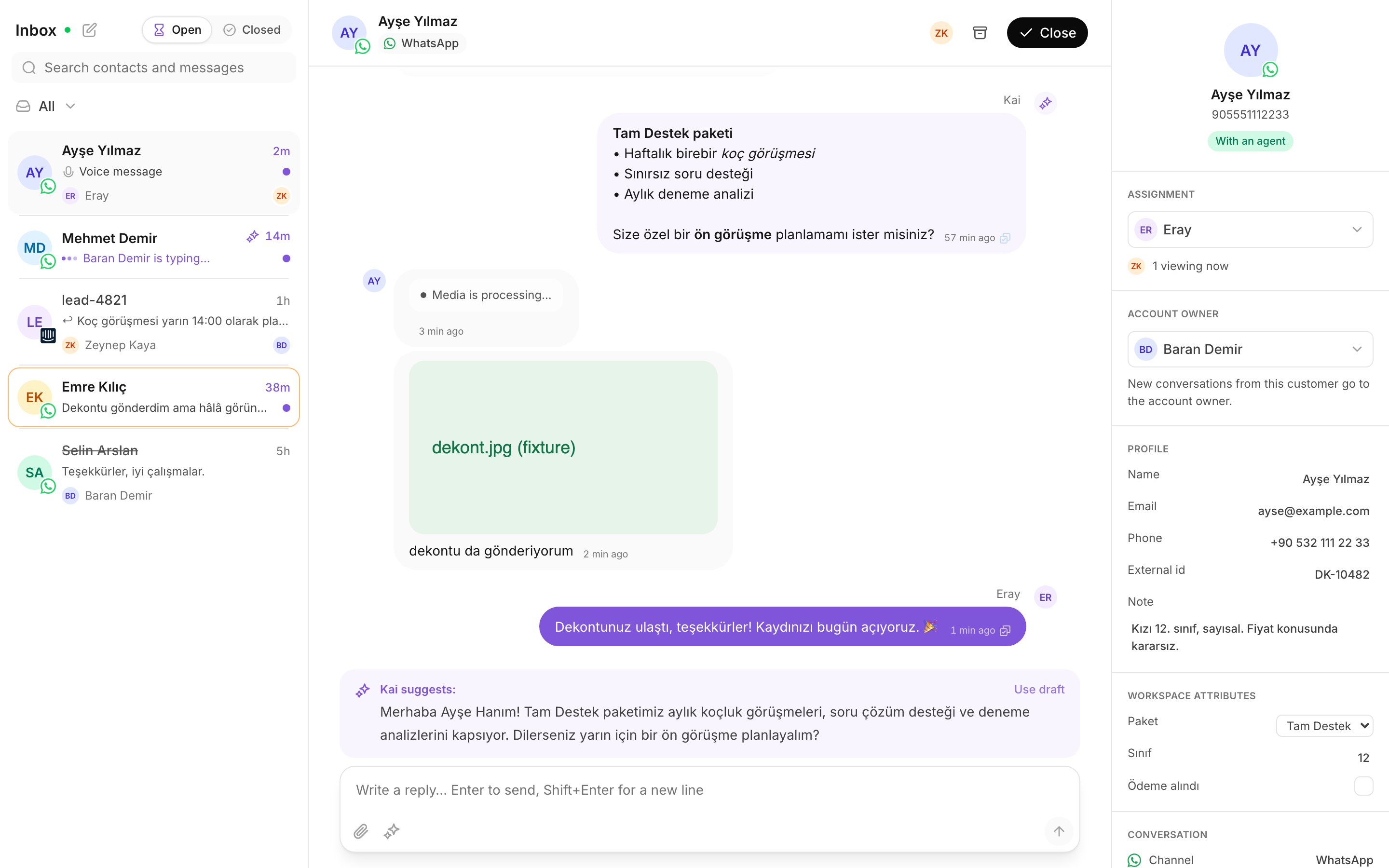
The details panel also shows **Kai has a draft waiting in the composer.**, so
you can see from the list that this thread has something ready.
## Use a draft
The card shows the first lines. Select the card to load the whole text.
The text moves into the composer. The card disappears.
The text is now yours. Change a word, cut a sentence, add the detail Kai
could not know.
Press `Enter` to send. Press `Shift`+`Enter` for a new line.
If the draft is wrong, ignore it. Write your own reply. The draft goes away
when your side speaks, because it answers a question the conversation has
moved past.
The composer is locked until somebody holds the conversation. Select
**Assign to me** first. See [The inbox](/product/inbox).
## When Kai drafts instead of replying by itself
In copilot, Kai always drafts. Every reply passes a person.
In autopilot, Kai sends by itself, but it steps back to a draft in these
cases:
* A human handoff rule fired. Kai hands the conversation to a teammate.
* The reply quotes a number that Kai cannot ground. See below.
* Confidence is under the floor set for the channel.
* A person already replied on this thread.
* The answer, or the conversation flow behind it, is not reviewed. Autopilot
uses reviewed content only.
**Numbers are grounded.** A number in a reply must appear in your current
information, in an answer that is not marked volatile, or in the
conversation itself. If Kai cannot find it, the reply becomes a draft. A
price that Kai cannot verify never reaches a customer on its own.
Read [Copilot and autopilot](/product/modes) for the whole gate.
## The coaching note on Intercom
Kai works inside the inbox your team already uses. On Intercom, Kai does not
create a new surface:
* a draft arrives as an **internal note** on the conversation;
* a handoff arrives as an **assignment** to a teammate.
The note holds the suggested reply and the coaching note: what Kai read, and
why it answered that way. Your reps read it in the Intercom inbox and reply
there.
In the Kai inbox, the same content renders as the draft card above the
composer.
## Ask Kai for a draft
Kai stops drafting on its own once a person owns a conversation. To get a
suggestion after a takeover, after a handoff, or after an assignment, ask for
it.
It sits beside the attach button. Its label is **Ask Kai for a draft**.
The composer says **Kai is reading the conversation…**. A model call takes
a few seconds.
Kai returns a draft in the usual card. If a handoff rule matched instead,
Kai returns **Kai would hand this over:** and the reason. That is an
answer, not an error.
A draft you asked for outranks the one the reply path left earlier. You asked
because the old one did not answer the question.
## Give feedback, so the next retrain learns
A rating is not a score. It is the gate that lets a live reply into the next
training corpus.
Kai never learns from its own unreviewed output. A reply that Kai sent, or a
draft that Kai wrote, enters the corpus only in two cases:
* a reviewer rated it **Good output**;
* a reviewer wrote a **Corrected reply**. The correction replaces what Kai
actually said, so the corpus holds your words.
Everything else is dropped. Internal notes are dropped. A conversation marked
**Needs follow-up** is left out whole.
Go to **Console**, then select **Review**. See
[The console](/product/console).
The list holds real customer conversations, newest activity first.
Select **Good output** or **Needs work**.
Under **Correct reply**, write the response Kai should have produced.
A note steers the next compile. It never adds a fact your team did not
write.
Feedback saves as you go. The console confirms with **Saved**, and shows
**Feedback is saved for the next training pass**.
Rate the replies that were wrong first. A correction teaches more than an
approval, and it is the one thing a retrain cannot get from anywhere else.
A rating is not the same signal as **Draft acceptance** on the Overview page.
That number comes from what the agent did with the draft: sent it as it was,
edited it, or ignored it. Kai records that by itself. A rating is the sentence
that says why. See [The overview page](/product/dashboard).
 ## Next
When Kai drafts, when it sends, and how to change that per channel.
Turn your reviewed conversations into a new draft of the Brain.
## Next
When Kai drafts, when it sends, and how to change that per channel.
Turn your reviewed conversations into a new draft of the Brain.