> ## Documentation Index
> Fetch the complete documentation index at: https://docs.kaisupport.com/llms.txt
> Use this file to discover all available pages before exploring further.
# Take and hand over a conversation
> Take a conversation nobody holds, give one to a teammate, and see who is on it.
Read this page to take work, to pass it on, and to avoid answering a customer
twice.
## One conversation, one assignee
A conversation has one **assignee**: the teammate who holds it. The composer
stays locked until somebody holds it. Two teammates answering one customer is
the mistake this rule prevents.
## Take a conversation nobody holds
The bar above the composer says **Nobody has this conversation yet.** If
Kai passed it to a person, it says **Kai handed this conversation over.
Nobody has it yet.**
The composer unlocks. The conversation now shows in **Mine**.
You do not have to take it first. If you send a reply on a conversation
nobody holds, Kai assigns it to you at the same moment. Sending is taking.
## Hand it to a teammate
Use **Assignment** in the details panel on the right. Select the menu, then
select the teammate. You can also use **Assign to someone else** in the bar
above the composer.
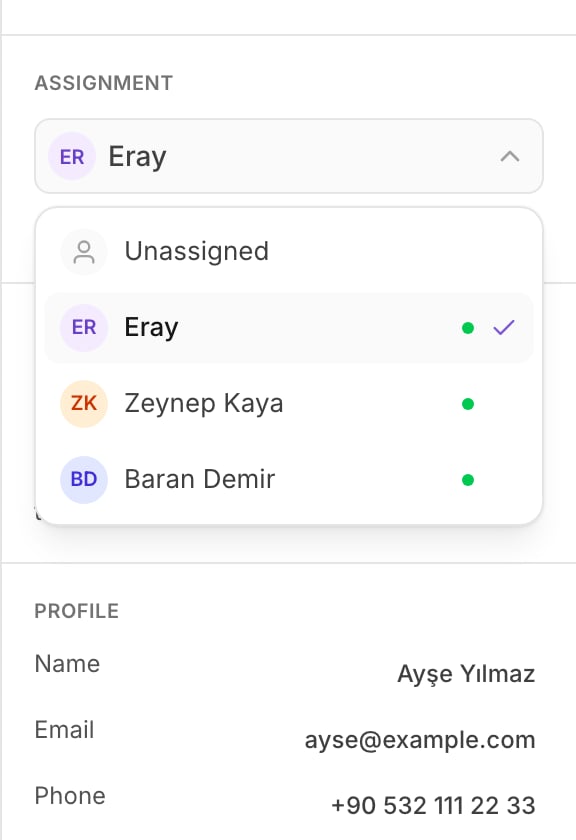 The green dot beside a name means that teammate is online now. Give the
conversation to somebody who is there.
To put a conversation back in the queue, select **Unassigned** in the same
menu.
## See who is reading it
Under **Assignment**, the panel shows the teammates who have this conversation
open right now, as **1 viewing now**.
The green dot beside a name means that teammate is online now. Give the
conversation to somebody who is there.
To put a conversation back in the queue, select **Unassigned** in the same
menu.
## See who is reading it
Under **Assignment**, the panel shows the teammates who have this conversation
open right now, as **1 viewing now**.
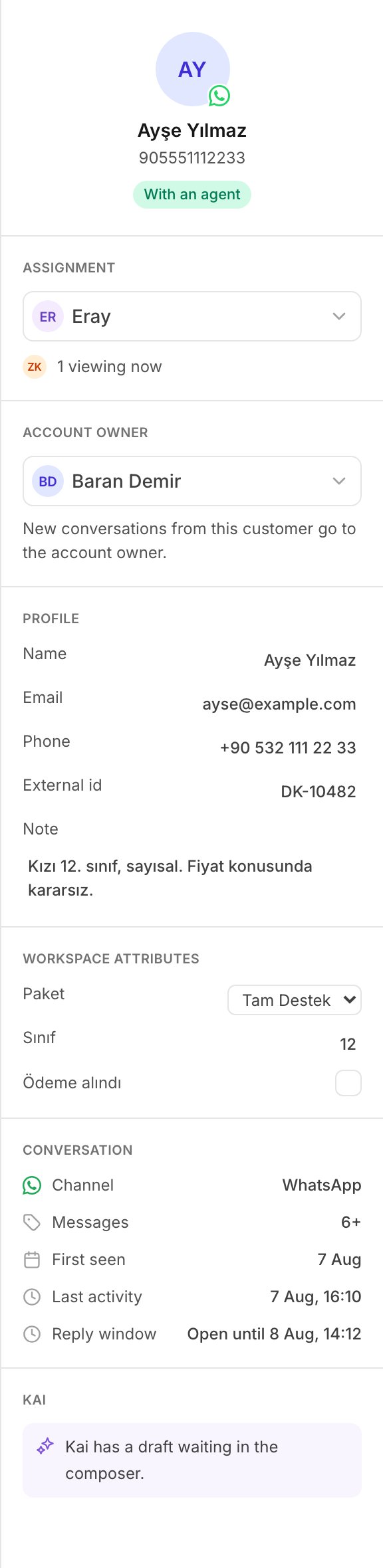 Read that line before you type. If a teammate is already in the thread, one of
you should leave it. The conversation list shows the same thing: small avatars
on a row mean somebody is in that thread.
## Assignee and account owner are different
These two words look alike, and they are not the same thing.
| Term | What it means |
| ----------------- | ------------------------------------------------- |
| **Assignee** | The teammate who holds **this one conversation**. |
| **Account owner** | The teammate who holds **the customer**. |
The account owner gets the customer's next conversation, but only while that
conversation is still unassigned. This is why a new conversation can arrive
already assigned to you: you own that customer.
Ownership routes new work only. It never takes a conversation back from the
teammate a manager gave it to. The details panel shows **Account owner** as
part of the customer record. A Manager or an Admin sets it. See
[Contacts and account owners](/product/contacts).
## What a handoff looks like from your seat
When Kai cannot answer safely, it hands the conversation to a person. From your
seat this is what you see:
1. Kai stops. It writes nothing more on that conversation.
2. The conversation waits with no assignee, so it shows in **Unassigned**.
3. The row is marked, and the bar above the composer says **Kai handed this
conversation over. Nobody has it yet.**
Kai hands over when a human handoff rule fires, when the reply would quote a
number Kai cannot verify, or when Kai is not confident enough. Kai often leaves
a draft with the handoff. Read it, then decide.
Take the conversation the same way as any other: **Assign to me**.
## Practice
1. Go to **Unassigned**, open a conversation, and select **Assign to me**.
Confirm it now shows in **Mine**.
2. Open the details panel and read **Account owner**. Note whether it is you.
3. Open **Assignment** and give the conversation to a teammate with a green
dot. Then take it back with **Assign to me**.
## Read next
Finish a conversation, and find it again when the customer writes back.
Read that line before you type. If a teammate is already in the thread, one of
you should leave it. The conversation list shows the same thing: small avatars
on a row mean somebody is in that thread.
## Assignee and account owner are different
These two words look alike, and they are not the same thing.
| Term | What it means |
| ----------------- | ------------------------------------------------- |
| **Assignee** | The teammate who holds **this one conversation**. |
| **Account owner** | The teammate who holds **the customer**. |
The account owner gets the customer's next conversation, but only while that
conversation is still unassigned. This is why a new conversation can arrive
already assigned to you: you own that customer.
Ownership routes new work only. It never takes a conversation back from the
teammate a manager gave it to. The details panel shows **Account owner** as
part of the customer record. A Manager or an Admin sets it. See
[Contacts and account owners](/product/contacts).
## What a handoff looks like from your seat
When Kai cannot answer safely, it hands the conversation to a person. From your
seat this is what you see:
1. Kai stops. It writes nothing more on that conversation.
2. The conversation waits with no assignee, so it shows in **Unassigned**.
3. The row is marked, and the bar above the composer says **Kai handed this
conversation over. Nobody has it yet.**
Kai hands over when a human handoff rule fires, when the reply would quote a
number Kai cannot verify, or when Kai is not confident enough. Kai often leaves
a draft with the handoff. Read it, then decide.
Take the conversation the same way as any other: **Assign to me**.
## Practice
1. Go to **Unassigned**, open a conversation, and select **Assign to me**.
Confirm it now shows in **Mine**.
2. Open the details panel and read **Account owner**. Note whether it is you.
3. Open **Assignment** and give the conversation to a teammate with a green
dot. Then take it back with **Assign to me**.
## Read next
Finish a conversation, and find it again when the customer writes back.